
7 months ago
How to Export YouTube Comments: A Complete Guide
Yes, you can export YouTube comments from any public video, Short, or even a live stream replay. This process is a game changer, transforming what looks like a chaotic stream of feedback into an organized dataset. It’s the key to truly understanding what your audience is thinking.
Why YouTube Comments Are Your Most Valuable Metric
Views and subscriber counts are nice, but they only scratch the surface. They tell you how many people are watching, not how many people care. The real gold, the unfiltered feedback, the lightbulb moment content ideas, and the deepest audience insights, lives right in the comment section. This is where your community actually talks back.
For creators and marketers, exporting YouTube comments is not just a neat trick anymore; it is a core part of a smart strategy. It allows you to take all that raw dialogue and turn it into something you can actually use to make better decisions. You can finally pinpoint what your viewers love, what confuses them, and exactly what they want you to create next.
The Shift from Watching to Engaging
The data backs this up. A huge study that looked at over 7 million videos discovered that YouTube comments shot up by an incredible 38% in just one year. The average jumped from 0.50 comments per video to 0.69. This is not a small trend; it is a massive shift in how people use YouTube. Viewers are no longer passive consumers. They are active participants eager to join the conversation.
What does this mean for you? Ignoring your comments is like paying for a focus group and then walking out of the room. Your audience is literally telling you what works. You just need the right tools to hear them clearly.
By systematically analyzing your comments, you stop guessing what your audience wants and start knowing what they need. This data first approach is how you create content that hits the mark every time and builds a genuinely loyal community.
Unlocking Actionable Insights from Comments
Once you have that exported file, your comment data becomes an incredibly flexible asset. This is not just about reading a long list of feedback; it is about structuring it so you can spot patterns and trends.
Here are just a few practical things you can do with your exported comments:
- Find Content Gaps: Are people constantly asking the same questions? That is your next video idea, right there.
- Gauge Audience Sentiment: Instantly see how people reacted to a new product you featured, a controversial topic, or a shift in your video style.
- Discover Organic Keywords: Pay attention to the exact words and phrases your audience uses. That is SEO gold for your titles and descriptions.
Understanding how your audience feels is a direct path to a stronger content strategy. When you know what resonates, you can create more of it. For a deeper dive into optimizing your videos, these essential YouTube SEO tips are a great place to start. Treating your comments as data creates a powerful feedback loop that can fuel your channel’s growth for years to come.
Your Guide To Exporting YouTube Comments
If you have ever tried manually copying and pasting YouTube comments, you know how frustrating it is. It is slow, messy, and you lose all the important context. But what if you could pull clean, structured data from any YouTube video in just a few clicks? With the right tool, you can. It is about working smarter, not harder, to understand what your audience is really saying.
The good news is that the process is surprisingly simple. Whether you are dissecting the feedback on a single long form video, a viral Short, a past live stream, or even an entire channel, your starting point is always the same: the URL. Grab that link, and you are ready to go.
From Single Videos To Entire Channels
Your needs can change from one day to the next. One moment, your marketing team might be zeroing in on the comments from a specific ad campaign video. The next, you might want to see what people are saying about your latest YouTube Short. A good export tool needs to be just as flexible.
This is where the real power comes in. You can go beyond a single video and export comments from an entire channel or a hand picked playlist. Imagine you need to gauge the overall sentiment from your last 10 product reviews or pull every question asked across a whole tutorial series. Instead of doing it one by one, bulk exporting lets you handle thousands of videos at once, saving you an incredible amount of time.
The real goal here is not just to read feedback; it is to find the patterns hidden within it. By exporting comments from many videos at the same time, you can start comparing performance, tracking how sentiment changes, and spotting the recurring themes that pop up across all your content.
Preserving Threads And Essential Metadata
Comments are not just isolated statements; they are conversations. Replies and counter replies build on each other, and losing that structure means losing the context. When you export YouTube comments, it is absolutely critical to keep the thread hierarchy intact. This means you see the original comment and the entire discussion that blossomed from it.
But the text itself is only half the story. The metadata attached to each comment provides a much deeper layer of insight. A proper export will always include:
- Author Details: The commenter’s name and a link to their channel.
- Likes and Replies: The count of likes and replies for each comment, showing what resonated with others.
- Timestamps: The exact date and time a comment was posted.
- Permalinks: A direct link that takes you right back to the original comment on YouTube.
This rich data turns a simple list of comments into a powerful dataset you can actually work with. You can learn more about formatting this data for analysis in our guide on how to export YouTube comments to Excel.
As the flowchart below shows, a comment represents the peak of audience engagement. It is the final, most valuable step after a viewer watches and likes your content.
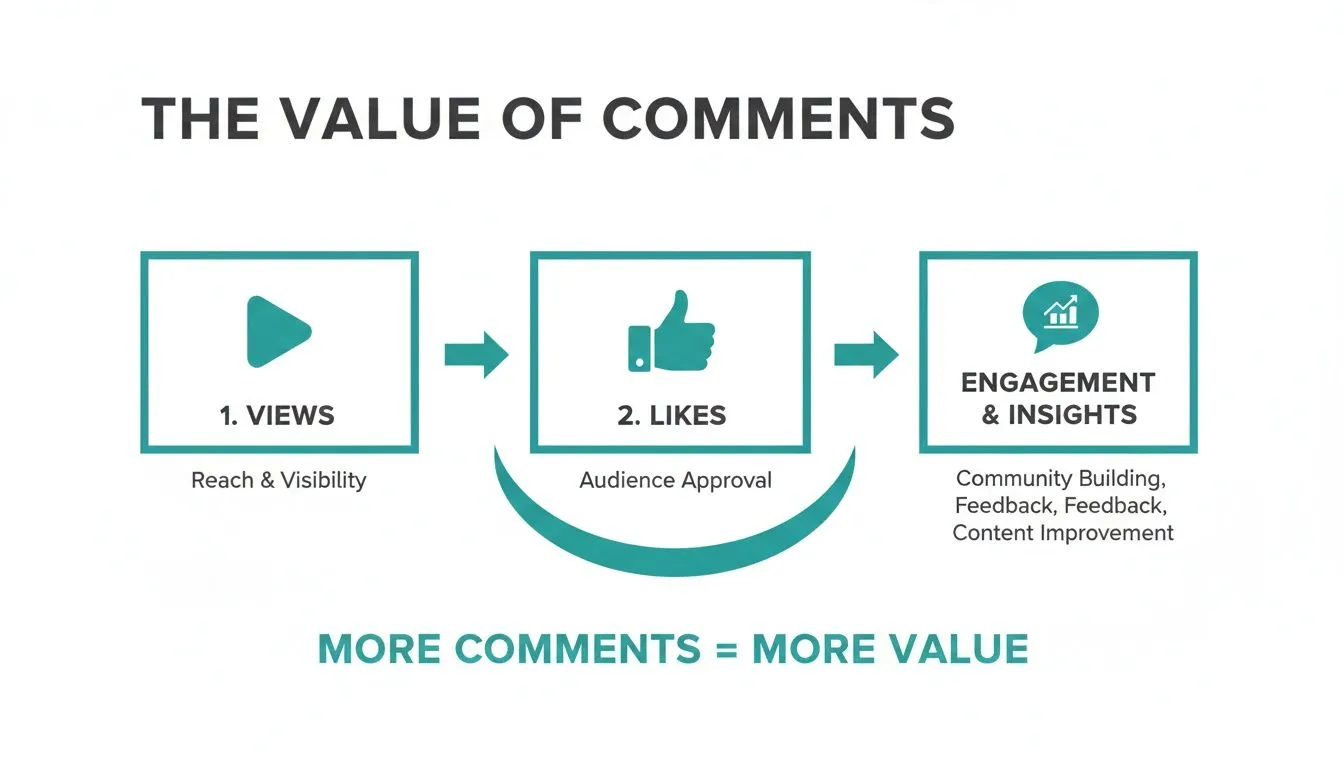
Think of it this way: comments come from your most invested viewers. They took the time not just to watch, but to think and type out a response. That is a signal you cannot afford to ignore.
A great tool makes accessing this data feel effortless. For example, with ExportComments.com, the interface is clean and to the point. You just paste your YouTube URL, pick a few settings, and start the export. It is designed to remove all the technical roadblocks, putting powerful data right at your fingertips.
Using Advanced Search And Filtering
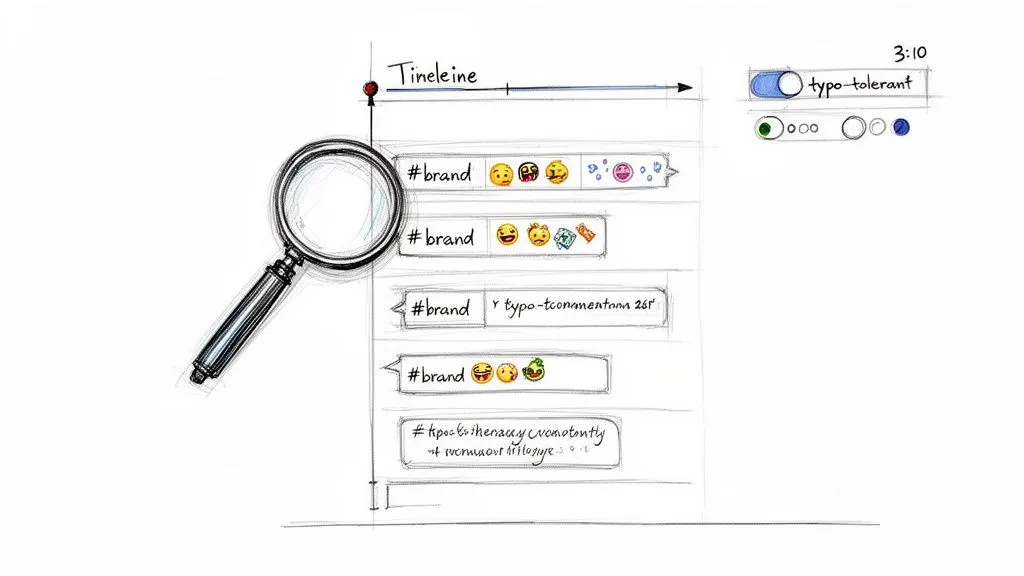
So, you have just exported your first big batch of YouTube comments. Staring at that massive wall of text can feel a bit like drinking from a firehose. You might have thousands of lines to sift through, and it is easy to get lost.
The real power is not just in having the data. It is in knowing how to find the gems hidden inside. That is where advanced search and filtering come in. Instead of drowning in data, you can zero in on the exact conversations that matter most to you and your channel.
Think about it. You could instantly pull every single comment that mentions a competitor, a new feature you are testing, or a specific pain point your audience has. This is how you turn a giant spreadsheet into a focused, strategic report.
From Keywords To Timestamps
Simple keyword searches are a good start, but the real magic begins when you dig deeper. The best comment export tools give you a whole suite of filters to slice and dice your data with surgical precision.
This lets you target very specific things people are talking about:
- Hashtag Tracking: Want to see how your latest campaign is landing? Filter for comments using your official hashtag, like
#GadgetGala2024, to see what real viewers are saying. - Emoji Analysis: Get a quick read on sentiment by filtering for emojis. A search for 👍, ❤️, or 🔥 can give you a fast overview of positive reactions, while 😠 or 👎 can highlight potential issues.
- Timestamp Mentions: Find every comment where someone flagged a specific moment in your video, like “The explanation at 2:15 was perfect!” This is invaluable for pinpointing your most effective content.
By filtering before you even download the file, you are doing most of the hard work upfront. It saves you hours of manual sorting in Excel and puts the most relevant feedback right at your fingertips.
Let’s say you are a tech reviewer who just posted a video on a new smartphone. You could immediately filter for all comments containing “battery life” or “camera quality” to get direct feedback on the features viewers care about most. If you want to see what this looks like in action, you can explore some powerful YouTube comment search capabilities with a free tool.
Capturing Every Conversation With Typo Tolerance
Here is a small detail that makes a massive difference: typos. People are typing fast, often on their phones, and mistakes happen. If you are only searching for “collaboration,” you are going to miss every comment that says “colaboration” or “collabaration.”
This is why a typo tolerant search feature is a game changer. When you turn it on, the tool is smart enough to find comments with common spelling errors. It ensures you get the full picture of what people are saying, not just the perfectly spelled version. It is a simple toggle that dramatically improves the accuracy of your analysis.
Turning Exported Data Into Actionable Insights
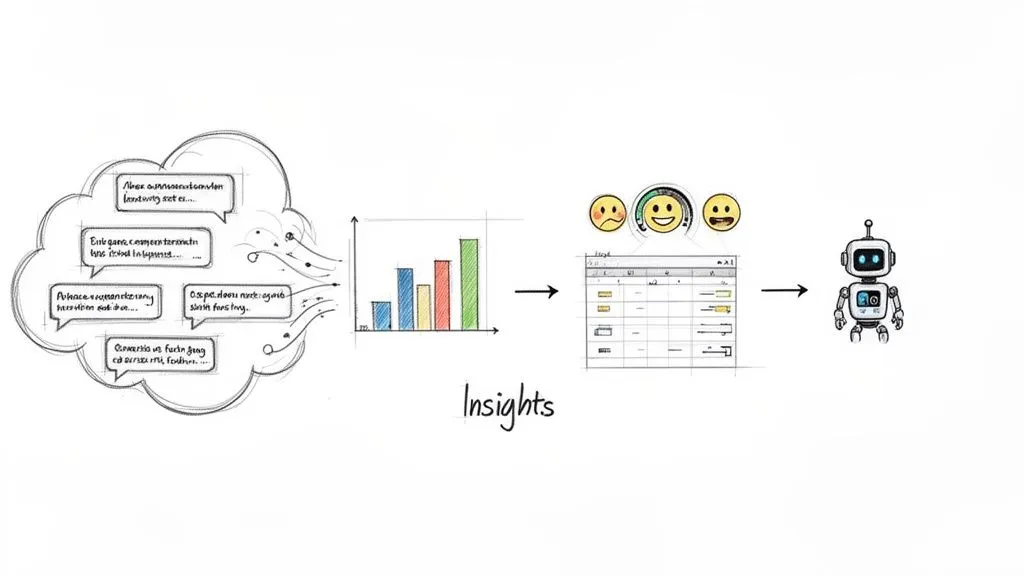
Getting a clean export of your YouTube comments is a great first step, but the real magic happens when you turn that raw data into a strategic advantage. This is where you move beyond simply collecting text and start unearthing the kind of intelligence that shapes better content, smarter marketing, and a stronger community.
The appetite for this kind of data is massive. To give you an idea, our own platform has processed well over 1 billion comments for more than 100,000 users. This is not just a number; it is a testament to how seriously creators and brands are taking public feedback to get an edge.
How to Import and Analyze Comments in Excel or Google Sheets
For most people, a spreadsheet is the natural starting point for digging into data. Both Microsoft Excel and Google Sheets are perfect for this, and getting your CSV or XLSX file loaded is incredibly simple.
Once you have your spreadsheet open, you can start organizing the data to find what matters. Here is a quick and effective way I always start my own analysis:
- Turn on Filters: The first thing you will want to do is apply filters to your header row. In Excel or Google Sheets, just select the top row, go to the “Data” tab, and click “Filter.” This adds a small dropdown arrow to each column, which is key for sorting and sifting through everything.
- Sort by Engagement: A great initial move is to click the filter arrow on the “Like Count” column and sort from “Largest to Smallest.” This immediately floats the most popular comments to the top. Right away, you get a clear picture of what ideas, jokes, or feedback truly hit home with your audience.
Finding Themes and Questions in Your Data
With your comments neatly organized in a spreadsheet, the real detective work begins. Your mission is to spot recurring topics, find frequently asked questions, and get a feel for the overall audience sentiment. Think of it as having a direct line into the minds of your viewers.
A spreadsheet filled with comments is basically a transcript from a massive, free focus group. By sorting and searching, you can pinpoint the exact moments of confusion, excitement, or curiosity your audience felt, giving you a clear roadmap for your next video.
For instance, if you run a cooking channel and filter comments for the word “substitute,” you might discover a huge demand for a follow up video on gluten free or vegan alternatives. A brand marketer could search for competitors’ names to see how they are being discussed. This kind of specific insight is invaluable, and our guide on how to download YouTube comments for analysis goes into even more detail.
Real-World Use Cases For Exported Comments
The value locked inside comment data is not just theoretical. Different professionals use this information every day to make smarter decisions and get better results.
| Role | Primary Goal | How Exported Comments Help |
|---|---|---|
| Content Creator | Improve future content | Identifies popular topics, confusing points, and video ideas directly requested by the audience. |
| Social Media Manager | Boost community engagement | Pinpoints top fans for shout outs and finds negative sentiment to address proactively. |
| Product Manager | Gather user feedback | Filters for feature requests, bug reports, and general sentiment about a product. |
| Market Researcher | Understand customer voice | Analyzes language and sentiment around a brand or competitor. |
| Academic Researcher | Study online discourse | Collects large scale datasets for linguistic or sociological analysis. |
As you can see, exported comments serve as a rich source of qualitative data that can fuel strategy across many different functions.
Let AI Do the Heavy Lifting
After you have exported your comments, you are faced with the challenge of making sense of it all. Reading through thousands of comments by hand just is not feasible. This is where tools specializing in AI for data analysis come in, helping you quickly spot trends and summarize sentiment.
A simple TXT export is perfect for this workflow. You can copy the raw text, paste it into an AI tool like ChatGPT, and give it a straightforward prompt.
Try something like this: “Summarize the key themes, most common questions, and overall sentiment from these YouTube comments.”
In a matter of seconds, the AI can deliver a concise report that would have taken you hours to compile manually. It is a powerful way to transform a mountain of raw data into sharp, strategic intelligence.
Practical Tips and Common Troubleshooting
Even the smoothest process can hit a snag now and then. When you are trying to export YouTube comments, a few common issues might pop up. Knowing what to expect and how to handle them will save you a ton of frustration and keep your project on track.
One of the most frequent questions I get is about slow exports. If things seem to be crawling along, it is usually not a sign that something is broken. More often than not, it is simply a matter of scale. A channel with millions of subscribers or a viral video with tens of thousands of comments just has a massive amount of data to process. The system is meticulously gathering every comment, reply, and piece of metadata, so a little patience goes a long way.
Handling Large-Scale Exports
So what do you do when you are staring down a mountain of data? If you are trying to pull comments from a massive channel with thousands of videos and the export is taking forever, do not just wait it out. Break it down.
A much better approach is to tackle the channel in smaller, more manageable chunks. You could start by exporting comments from specific playlists or just a few high priority videos at a time. This gets you usable data much faster and avoids potential timeouts, which can be a real headache with huge, long standing channels.
The goal is to get your data efficiently. If a channel has over 3,000 videos, exporting them in logical groups (like by year or by series) is often a smarter approach than trying to pull everything at once.
Pro Tips for More Effective Analysis
Once you have got your data, the real fun begins. But do not just think of this as a one time data pull. The most powerful insights come from tracking conversations over time.
Here are a couple of my go to techniques:
- Schedule Recurring Exports: For your most important videos, set up a weekly or monthly export. This is fantastic for spotting shifts in audience sentiment, identifying new questions that keep popping up, and seeing how engagement evolves as a video gets older.
- Use HTML Exports for Visuals: Need to include some comment examples in a report or presentation? The HTML export format is your best friend. It preserves the original YouTube look and feel, so you get clean, professional looking screenshots without any extra work.
These methods are especially valuable given the sheer scale of conversation on the platform. With YouTube projected to have between 2.5 to 2.7 billion monthly users and a recent 38% spike in comments, you are tapping into a massive frontier for analytics. You can dig deeper into these trends and what they mean by exploring YouTube’s data landscape.
Navigating Data Privacy and Ethics
As you export YouTube comments, it is crucial to remember that you are working with public conversations, but they still involve real people. Just because the data is out there does not mean it is a free for all.
Always handle the data ethically. A good rule of thumb is to avoid publishing comments with personally identifiable information, especially if you are using them in research or public reports. The aim is to analyze trends and themes, not to put individual users under a microscope. Anonymizing your data wherever possible is a simple but essential step to respect the privacy of the community.
Got Questions? We’ve Got Answers
If you are new to exporting YouTube comments, you probably have a few questions. Let’s tackle some of the most common ones I hear from users.
Can I Export Comments From A Private YouTube Video?
Unfortunately, no. You cannot export comments from private or unlisted YouTube videos. All the tools designed for this task rely on public data. If a video is not visible to the world, its comment section is also off limits.
Does The Export Include Replies To Comments?
Absolutely, and this is a critical feature. A good export will preserve the thread hierarchy, giving you the option to download all the replies along with the original comments.
I always recommend including replies. It is the only way to get the full picture of a conversation. You will see the back and forth, the debates, and the real community interactions, which is where the most valuable insights are often hiding.
Is It Possible To Export Comments From A YouTube Live Stream?
Yes, you can pull the entire chat log from a completed YouTube live stream. Once the stream ends and the replay is posted, you can grab the video’s URL and export the chat history just like any other video. This is fantastic for reviewing audience reactions and questions after an event.
Just remember, this works for chat replays, not for active, real time streams. The process is designed for post event analysis.
How Many Comments Can I Export At Once?
The sky is pretty much the limit here, depending on the tool you are using. Professional grade services are built for scale and can handle videos with tens or even hundreds of thousands of comments without breaking a sweat.
Better yet, a robust bulk export feature lets you pull comments from entire channels or playlists. We are talking about processing millions of comments across thousands of videos in one go. It is designed to handle massive datasets, making comprehensive channel audits or large scale research projects entirely feasible.
Ready to stop guessing and start analyzing? With the YouTube Comments Downloader, you can turn chaotic public discussions into structured, actionable data in seconds. Start for free and get the insights you need to grow your channel.