
7 months ago
Export YouTube Comments to CSV: export youtube comments to csv for analysis
The absolute best way to export YouTube comments to CSV is to use a dedicated tool that pulls the data right from the video’s public page. Forget tedious manual copy-pasting. This approach keeps all the important metadata, like author names, timestamps, and even the nested reply threads, neatly organized in a spreadsheet.
Why YouTube Comments Are Your Untapped Data Goldmine
Let’s be honest, most people see YouTube comments as just engagement fluff. But they’re so much more. Think of them as a massive, unfiltered firehose of audience feedback. When you export those comments into a clean CSV file, you turn all that chaotic chatter into an organized dataset, ready for analysis in tools like Excel or Google Sheets.
Suddenly, you’ve shifted from slow, manual data gathering to an efficient, automated process. You’re getting direct access to what your audience truly thinks, feels, and wants.
Just look at how clean the data becomes. Instead of an endless scroll, you get a structured table you can actually work with.

With this kind of format, thousands of comments are instantly searchable, sortable, and ready for you to dig into.
From Raw Chatter to Actionable Insights
For content creators, this is pure gold for brainstorming. Imagine filtering comments for phrases like “can you make a video about” or “next time, show us.” You can literally build a content calendar based on exactly what your viewers are asking for.
Marketers can use this data to get a real feel for campaign sentiment. Ditch the vanity metrics like view counts and instead analyze the actual language people are using. You’ll quickly understand the emotional response to a product launch or promotion.
Key Takeaway: Exporting comments isn’t just about archiving conversations. It’s about turning public opinion into a measurable asset. You gain the power to spot trends, track brand perception, and make data-driven decisions with real confidence.
The Problem With Manual Methods
You might be tempted to just copy and paste comments yourself. At first glance, it seems free and easy, but that approach falls apart quickly, especially when dealing with hundreds or thousands of comments. It’s not just slow; it’s a surefire way to lose valuable context and introduce errors.
To put it in perspective, here’s a quick comparison.
Manual VS Automated Comment Export Comparison
| Feature | Manual Copy-Paste | Automated Tool (YouTube Comments Downloader) |
|---|---|---|
| Speed | Extremely slow, hours for a popular video | Very fast, minutes for thousands of comments |
| Data Integrity | High risk of errors, missed comments, and broken formatting | Captures all available comments accurately |
| Metadata | Loses crucial data like timestamps, likes, and author IDs | Preserves all metadata, including replies and timestamps |
| Scalability | Not feasible for multiple videos or large channels | Easily handles bulk exports across entire channels |
| Reply Threads | Fails to preserve the parent-child reply structure | Maintains the nested hierarchy of comment threads |
The table makes it clear: for any serious analysis, automation isn’t just a convenience; it’s a necessity. Manual methods simply can’t handle the scale and complexity of YouTube’s comment sections.
Key Applications for Exported Comment Data
So, what can you actually do with all this data once you have it? Here are a few powerful ways people are putting it to use:
- Sentiment Analysis: Quickly find out if a video’s reception is positive, negative, or neutral by analyzing the words people use.
- Audience Research: Sort by author or reply count to identify your most engaged fans and superfans.
- Content Strategy: Pinpoint frequently asked questions to create dedicated Q&A videos or improve your product’s help docs.
- Competitor Monitoring: Export comments from a rival’s channel to understand their audience’s pain points and spot opportunities they’re missing.
- Brand Health Tracking: Run recurring exports to monitor mentions of your brand over time, letting you catch and address issues before they blow up.
Ultimately, this is all about making smarter decisions. Whether you’re a solo creator trying to grow your channel or a marketing team managing a global brand, the insights buried in your YouTube comments are just too valuable to ignore. Learning how to export YouTube comments to CSV is your first step toward unlocking that potential.
Now that we’ve covered why you’d want to export comments, let’s dive into the how. This is your hands-on guide for getting that valuable comment data off of YouTube and into a spreadsheet where you can actually use it. The whole process of exporting YouTube comments to CSV is surprisingly simple, even if you’ve never touched a line of code. All you really need to get started is a video link.
The basic idea is this: you give a tool the video’s web address, and it goes out and fetches all the public comments for you. This is far better than manually copying and pasting, which is not only a soul-crushing task but also loses all the important data that gives the comments their context.
Using a dedicated tool like the YouTube Comments Downloader makes this a breeze. You just paste in the video’s URL, pick a few settings, and let it do the hard work of gathering every comment and all its associated details.
The Single Video Export Process
Let’s walk through a real-world example. Imagine you just posted a new product review and you want to see how people are reacting right away. You care about what’s being said, sure, but you also want to know who’s saying it and which comments are really hitting a nerve with your audience.
First, just go to your video and copy the URL from your browser’s address bar. It’s the one that looks like https.youtube.com/watch?v=....
Next, you’ll head over to the export tool and paste that link right into the input box. This is where you’ll need to choose your file format. While you might see an option for Excel (XLSX), I almost always recommend choosing CSV (Comma-Separated Values). Why? Maximum compatibility. CSV files are the universal language of data; they’re lightweight and can be opened by pretty much any spreadsheet or analysis software you can think of, from Google Sheets to more powerful database tools.
Once you start the export, the tool gets to work. For a video with a few thousand comments, you’re usually only looking at a minute or two of waiting time. The end result is a neat CSV file, downloaded and ready for you to slice and dice.
The real magic here is in the metadata. A simple copy-paste might get you the text, but an automated export gives you a rich, organized dataset. You get the whole story of the conversation, not just a few out-of-context lines.
When you open up that CSV, you won’t be staring at a chaotic wall of text. Instead, you’ll find a clean, structured table with everything sorted into columns. This organization is what turns raw comments into actionable insights.
Understanding the Exported Metadata
That CSV file you just downloaded is so much more than just a list of comments. It’s a detailed log of the entire conversation that took place on your video. Here’s a quick rundown of the key data points you’ll get and why they’re so useful:
- Comment Text: This is the comment itself. It’s the raw material for your keyword analysis, sentiment tracking, and finding common themes.
- Author Name: The display name of the person who left the comment. This helps you spot influential fans, repeat commenters, or even potential brand ambassadors.
- Timestamp: The exact date and time the comment was posted. I love using this to track feedback over time. It’s especially handy after a big launch or marketing push.
- Like Count: The number of likes a comment has. Sorting your sheet by this column is the quickest way to find the most popular opinions and see what really resonated with your audience.
- Reply Count: This shows how many replies a top-level comment sparked. It’s a great indicator of which comments started the most engaging discussions.
- Permalink: A direct link right back to that specific comment on YouTube. This is incredibly helpful for double-checking the original context or even jumping in to reply directly from your spreadsheet.
Armed with this data, you can transform a jumble of comments into a powerful research asset. In just a few clicks, you could filter for all comments with over 50 likes to see what your community loves, or check timestamps to see how reactions changed in the first 24 hours after you hit “publish.”
Expanding to Channels and Playlists
But what if you need a bigger picture? The good news is that you’re not stuck exporting one video at a time. If you want to analyze comments across your entire channel or from a specific video series, you can do that, too. The process is almost exactly the same.
Instead of a single video URL, you just provide the URL for a channel or a playlist.
- Channel Export: Grab your channel’s URL (something like
https://www.youtube.com/c/YourChannelName) and paste it in. This lets you pull comments from every single public video on the channel. It’s fantastic for doing a quarterly brand health check-in or a deep dive on a competitor. - Playlist Export: Got a multi-part tutorial or a series on a specific product? Just use the playlist’s URL. This is perfect for analyzing feedback on a connected content series without pulling in unrelated videos.
By widening your scope, you can go from analyzing a single video to understanding your entire audience at a channel-wide level. This bulk export capability is a game-changer for brand managers, researchers, or anyone serious about understanding their community’s voice. The ability to export YouTube comments to CSV at this scale truly unlocks a new level of strategic analysis.
Mastering Bulk Exports for Large-Scale Analysis
Grabbing comments from a single video is great for quick feedback, but the real magic happens when you analyze conversations across an entire channel or even multiple channels. This is where bulk exporting comes into play. It’s an absolute game-changer for marketers juggling brand accounts, agencies keeping tabs on competitors, or researchers tackling massive datasets.
Instead of exporting comments video by video (which would take forever), you can export YouTube comments to CSV from hundreds or even thousands of videos all at once. This method pools all that scattered feedback together, making it easy to spot big-picture trends, gauge channel-wide sentiment, and truly understand your audience on a macro level.
The process itself is surprisingly straightforward, turning a complex data-gathering job into just a few simple clicks.
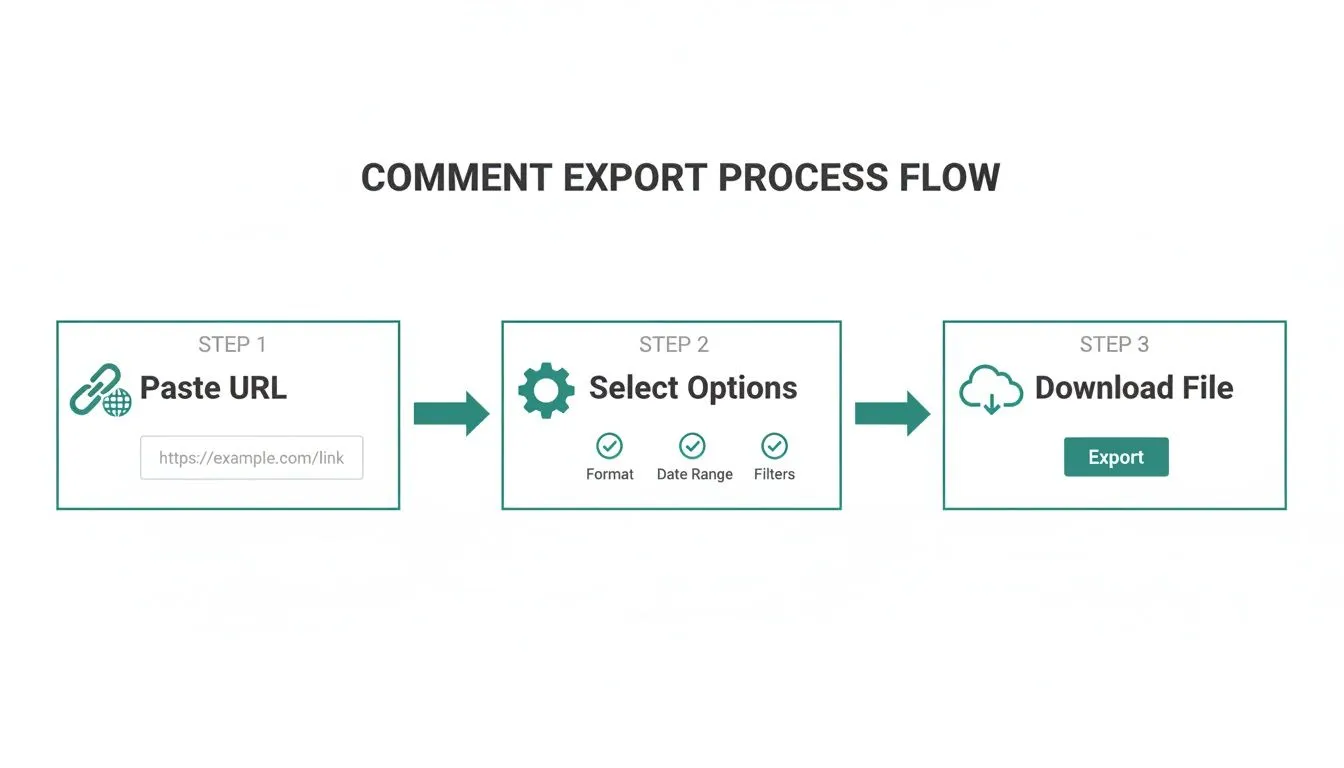
As you can see, what seems like a daunting task is broken down into a simple flow, making large-scale analysis accessible to just about anyone.
The Power of Bulk Exports in Action
Let’s put this into a real-world context. Imagine a marketing team getting ready to launch a new gadget. Their top three rivals have each published over 150 videos in the last year, including demos, reviews, and tutorials. Trying to collect feedback manually from over 450 videos would be a nightmare.
With a bulk export, the team can just compile a list of all those video URLs and download every single comment into one master CSV file. Suddenly, they have a treasure trove of data. They can:
- Filter for keywords like “battery life” or “software bug” to pinpoint exactly where competitors are dropping the ball.
- Sort by like count across all videos to discover which features get audiences most excited.
- Analyze comment timestamps to see how sentiment changed right after a competitor pushed a software update.
This kind of deep, competitive intelligence gives them a serious edge. It turns a mountain of messy comments into a clear roadmap for their own product and marketing strategy.
Preparing Your List for a Bulk Export
The secret to a smooth bulk export is a clean, simple list of video URLs. You don’t need any fancy software; just a plain text editor like Notepad on Windows or TextEdit on a Mac will do perfectly.
All you need to do is paste each video URL on its own line. No commas, no bullet points, nothing extra. Just the raw URLs.
For example, your list should look something like this: https://www.youtube.com/watch?v=videoID1 https://www.youtube.com/watch?v=videoID2 https://www.youtube.com/watch?v=videoID3 …and so on.
Once your list is ready, you can upload that text file directly into a tool like YouTube Comments Downloader. The tool then gets to work, processing each URL one by one and pulling all the comments into a single, organized dataset for you. For a more detailed walkthrough, check out our guide on how to bulk download YouTube comments.
Handling High-Volume Data from Shorts and Viral Videos
The data world never sits still. With the explosion of YouTube Shorts, now pulling in over 70 billion daily views as of 2025, the volume of comments has skyrocketed. These short, punchy videos generate tons of quick, reactive discussions. For any team managing multiple channels, being able to process this data in bulk isn’t just nice to have; it’s essential.
Modern tools are built for this scale. Some can process 750,000 comments from 3,000 videos in under 30 minutes, allowing researchers to stay on top of the conversation as it happens. You can find more on the latest user trends in these helpful YouTube statistics.
Bulk exporting turns data collection from a bottleneck into a simple preparatory step. The time saved is reinvested directly into analysis, where the real value lies. You spend less time gathering and more time discovering.
This efficiency is what makes large-scale research possible. Whether you’re dissecting a viral video with a million comments or tracking brand mentions across your entire industry, the ability to export YouTube comments to CSV in bulk is your key to unlocking insights at a scale you might not have thought was possible.
Alright, you’ve successfully used a tool to export YouTube comments to CSV, and now you have a neatly organized file ready to go. So, what’s next? A CSV file on its own is just raw data. The real magic happens when you turn that data into smart decisions and real-world results.
Think of that spreadsheet as your own personal focus group, available whenever you need it. With a few quick maneuvers in Excel or Google Sheets, you can start pulling out insights that were completely buried in the endless scroll of a typical comments section.
Find Your Next Hit Video Idea
For any creator, the comments are a goldmine for content ideas. Instead of guessing what your audience wants to see, your exported data lets you find out directly. Just open your CSV and start filtering the comment_text column.
I like to search for trigger phrases that signal exactly what viewers are asking for:
- “Can you make a video about…”
- “I wish you would explain…”
- “Next time, could you show…”
- “How do I…”
Pulling out these specific requests helps you build a content calendar packed with topics you know your audience is hungry for. It’s one of the most reliable ways I’ve found to boost satisfaction, grow a channel, and track content performance effectively over time.
Measure Campaign Reactions with Sentiment Analysis
If you’re on a marketing team, exported comments offer an unfiltered look at how a new product or ad campaign is really landing. Views are one thing, but the language people use tells you the emotional story. Once you export YouTube comments to CSV, you can run a sentiment analysis to get a real pulse check.
You can do a quick-and-dirty analysis yourself. Just add a new column in your spreadsheet and start tagging comments. Filter the comment_text for positive words (“love,” “amazing,” “helpful”) and negative ones (“disappointed,” “confusing,” “broken”). For a more sophisticated take, our companion AI analyzer can process your data and categorize sentiment for you.
This simple process gives you a measurable sense of audience perception, showing you what’s hitting the mark and what’s falling flat.
Pinpoint and Reward Your Biggest Fans
Ever wonder who your most engaged community members are? The answer is sitting right in your exported data. Pop open your CSV and sort the like_count column from highest to lowest. The comments that float to the top are the ones that resonated most with everyone else.
By sorting comments by likes, you instantly surface the most popular feedback and identify which ideas have the strongest community backing. It’s a fast and effective way to validate content ideas or product features.
You can also sort by the author_name column to see who pops up most often. These are your superfans: your potential brand advocates. Giving them a shout-out or engaging with them directly is a powerful way to build a loyal community.
Streamline Customer Support and Build Out Your FAQs
Whether you planned it or not, your comments section often doubles as a customer support channel. Exporting comments allows you to spot common pain points and recurring questions without having to manually read through thousands of threads.
Filter your CSV for question marks or keywords like “help,” “question,” or “issue.” Grouping similar queries helps you build out a solid FAQ page for your website or even script a dedicated Q&A video. This not only makes your audience happier but also takes a significant load off your support team by answering questions before they’re even asked.
Don’t forget the global context, either. YouTube’s reach is massive. India, for example, has a staggering 491 million users, dwarfing the 253 million in the US and 54.8 million in the UK. Your comment data is likely a mix of languages and cultural perspectives, which makes a clean data export even more valuable for spotting regional trends.
Getting Your CSV File Ready for Analysis
So, you’ve just exported your YouTube comments. Great! But a raw CSV file is really just the beginning. The real magic happens when you open it in a spreadsheet program like Excel or Google Sheets and do a little prep work. Taking a few minutes to organize your file now will save you a ton of headaches later when you start digging for insights.
If you’re new to this, it helps to know exactly what a CSV file is and why it’s the go-to format for this kind of work. Think of it as a universal spreadsheet that any program can read, making it incredibly versatile.
First Moves in Your Spreadsheet
Opening a fresh CSV can feel a bit chaotic, with data everywhere. The very first thing I always do is turn on filters. It’s simple: just click the header row (the one with titles like comment_text and author_name) and hit the “Filter” button. This little trick adds dropdown arrows to each column, instantly making your data sortable and much easier to manage.
Next up is a quick cleanup. Let’s be honest, not every comment is gold. Before I dive into any real analysis, I use the filters to get rid of spam. For instance, I’ll filter the comment_text column for common spammy phrases like “check out my channel” and just hide them. This clears out the noise so I can focus on genuine feedback.
Your exported file contains a wealth of information beyond just the comment text. Understanding what each column represents is key to unlocking powerful insights.
Here’s a breakdown of the most important columns you’ll find in your CSV and how you can use them.
Essential CSV Data Columns and Their Purpose
| Column Name | Description | Analysis Use Case |
|---|---|---|
comment_text |
The actual content of the comment. | Perform sentiment analysis, identify common themes, or find user questions. |
author_name |
The name of the commenter’s YouTube channel. | Spot repeat commenters, identify influencers, or track community advocates. |
like_count |
The number of likes a comment has received. | Quickly find the most upvoted and popular opinions from your audience. |
reply_count |
The number of replies to a top-level comment. | Identify the most engaging comments and discussion threads. |
permalink |
A direct URL to the specific comment on YouTube. | Instantly jump to the comment in its original context to reply or investigate further. |
comment_id |
A unique identifier for each individual comment. | Use this as a stable key to link datasets or prevent duplicate entries. |
These columns are your building blocks. By combining and filtering them, you can start to piece together the story your audience is telling you.
Mastering Filters and Functions
With your data cleaned up, you can start asking questions. Filters are perfect for quick, simple queries. For example, want to see the most popular feedback? Just filter the like_count column to show only comments with more than 100 likes. It’s a super fast way to see what ideas resonated most with your viewers.
For more detailed questions, you’ll want to use basic spreadsheet functions. Let’s say you want to collect all the questions your audience has asked. You can create a simple formula to check if the comment_text column contains a question mark. This is an awesome way to build a list of topics for your next Q&A video.
Pro Tip: Don’t forget about the
permalinkcolumn! I find this one of the most useful fields. It’s a direct link back to the comment on YouTube, perfect for checking the context of a conversation or replying directly to someone who left a particularly great piece of feedback.
While CSV is fantastic, it’s worth knowing about other YouTube comment export formats too. Depending on your project, a format like JSON might offer more flexibility for developers.
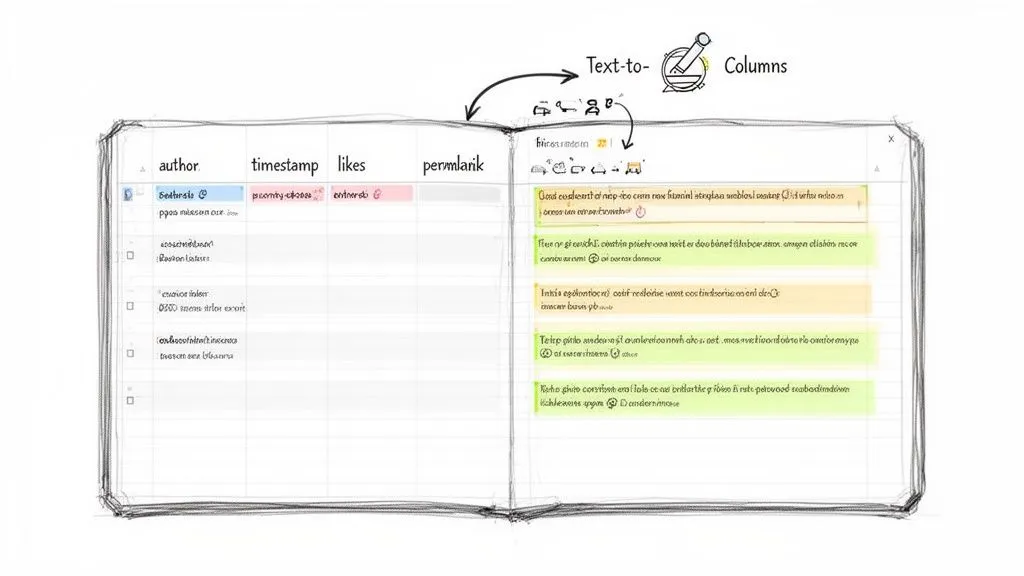
Quick Tutorial: Using Text to Columns
Ever had data squished together in one cell that you wish you could separate? This is useful for things like timestamps or tags people add to their comments. Excel’s “Text to Columns” feature is your best friend here.
Here’s how to use it:
- Select the column you want to split by clicking on its header.
- Navigate to the Data tab and click “Text to Columns.”
- A wizard will pop up. Choose “Delimited” if your data is separated by a specific character (like a comma, space, or hyphen) and click Next.
- Check the box for the delimiter that separates your data. The preview window will show you exactly how it’s going to look.
- Click “Finish,” and boom, Excel creates new columns with your neatly separated data.
This is a game-changer for breaking down complex comments into smaller, more analyzable pieces. The goal is to get your data structured quickly so you can spend less time cleaning and more time finding the valuable stories hidden inside.
Common Questions About Exporting Comments
Even with a simple process, you probably have a few specific questions about exporting YouTube comments. Let’s tackle some of the most common ones I hear from creators, marketers, and researchers. Getting these answers straight will help you handle any export with confidence, no matter how big or complex the job is.
Each answer here is designed to be direct and practical, hitting on the real-world situations you’re likely to face.
Can I Export Comments from a Private or Unlisted Video?
This is a big one. The short answer is no. You can only export comments from videos that are publicly available. If a video is set to “Private” or “Unlisted,” its comment data isn’t accessible through public channels, which means export tools can’t get to it.
Think of it as a privacy and access boundary. These tools are built to analyze public conversations, not to get around the privacy settings YouTube has in place.
How Are Comment Threads and Replies Handled in the CSV?
This is probably one of the most important things to get right. If you’ve ever tried manually copying comments, you know it completely destroys the conversational context. A proper export tool, thankfully, preserves it. Your CSV file will maintain the entire thread hierarchy.
Here’s a quick look at how that works in the spreadsheet:
- Parent Comment: Each top-level comment gets its own row in the file.
- Replies: Any replies to that comment are then listed in the rows directly below it. They are typically linked back to the original with a “Parent Comment ID”.
This structure is a game-changer because it lets you reconstruct entire conversations. You don’t just see what was said, but you can follow how the discussion unfolded.
This preservation of thread hierarchy is critical. It allows you to analyze not just individual opinions but the dynamics of the conversations they spark. You can easily see which topics generate the most back-and-forth discussion.
What About Exporting from Viral Videos with Millions of Comments?
Pulling comments from a video with millions of them might sound like a nightmare, but modern tools are built for exactly this scenario. Sure, the export might take a bit longer than for a video with only a few hundred comments, but the process itself is identical. You just paste the URL and let it run.
The CSV file will be massive, of course, but programs like Excel and Google Sheets can handle millions of rows. The real trick is to use their filtering and sorting functions to navigate the dataset effectively. Instead of trying to read everything, you can quickly find comments with high like counts or search for specific keywords to zero in on the feedback that matters most. This makes analyzing even the most viral content totally manageable.
Ready to stop guessing and start analyzing? YouTube Comments Downloader gives you the tools to turn chaotic public discussions into structured, actionable data. Export comments from videos, Shorts, and entire channels in seconds. Get started for free today!