7 months ago
Export YouTube Live Chat Comments and Unlock Viewer Insights
Absolutely. Exporting YouTube live chat comments is not just possible; it’s surprisingly straightforward with the right tools. No-code solutions can take the entire chat replay and neatly package it into a structured file like an XLSX or JSON, all without you having to touch a single line of code.
The Untapped Goldmine in Your Live Chat Replays
Think of a YouTube live stream. It’s not a one-way street; it’s a dynamic, real-time conversation with your most dedicated followers. While the comments on a regular video are great, the chat replay from a live event is a whole different beast. It’s a raw, unfiltered look at your audience’s immediate thoughts, questions, and excitement.
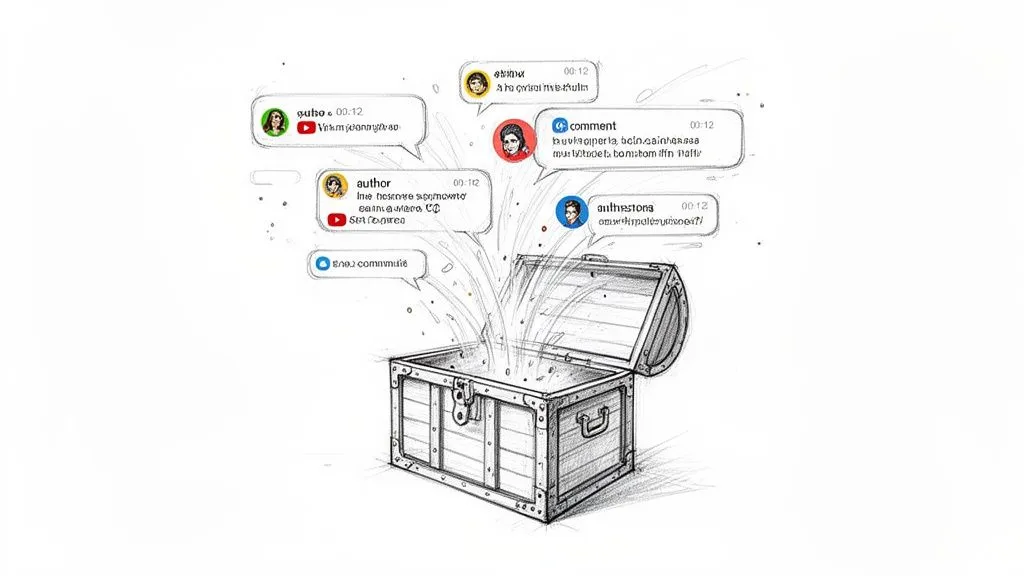
I’ve seen firsthand how this data can be an instant focus group for a marketer launching a new product. For creators, it’s a direct line to finding super-fans, identifying confusing parts of a presentation, and getting amazing content ideas straight from the people who matter most.
And this isn’t a niche activity anymore. Live streaming on YouTube is massive and growing. Projections show that over 30% of viewers will tune into live content daily by mid-2025. What’s more, a huge 56% of those viewers actively jump into the chat. That’s a massive, engaged audience building a real community. Studies even show 63% of consumers are more loyal to brands that use live streams.
Why Exporting Live Chat Comments Is a Game Changer
Here’s a quick look at the direct value of exporting live chat data for different professional roles and goals.
| Role | Key Benefit of Exporting Chat Data | Practical Use Case |
|---|---|---|
| Marketer | Unfiltered Consumer Insights | Search exported comments for keywords related to a new feature to gauge immediate sentiment and collect authentic testimonials. |
| Content Creator | Identify Your “Super-Fans” | Sort the data by user to find the most active chat participants and reward them with a shout-out or exclusive content. |
| Community Manager | Streamline Q&A and Support | Filter the chat for all messages containing a question mark (“?”) to quickly build a comprehensive FAQ document after a stream. |
| UX Researcher | Pinpoint Pain Points | Analyze timestamps of negative comments during a product demo to identify exactly where the user experience became confusing or frustrating. |
This simple export turns a fleeting conversation into a permanent, valuable asset you can reference again and again.
Turning Chaos into Actionable Data
Here’s the problem with live chat: it’s pure chaos. During a busy stream, thousands of comments can fly by in minutes, making it impossible to track manually. If you just scroll through the replay, you’re not getting any real information. You lose all the context, like who your biggest contributors are or what topics set the chat on fire.
This is exactly why you need to export the chat comments. Doing so transforms that chaotic, scrolling feed into a structured, searchable, and analyzable dataset.
By converting a live chat into an organized file, you’re not just saving comments. You are creating a permanent, data-rich record of your community’s real-time feedback, which is an essential asset for any data-driven content or marketing strategy.
With a properly exported file, you can suddenly do things that were impossible before:
- Find Your Super-Fans: Instantly see who posts most often and engages with others.
- Gauge True Sentiment: Search for keywords to see how the audience really felt about that new announcement.
- Harvest Every Question: Pull out all user questions to create a definitive FAQ or your next video topic.
- Pinpoint Key Moments: See which timestamps in your video caused a huge spike in comments.
This whole process is a cornerstone of modern audience analysis. It’s a powerful social media research tool for understanding your community’s pulse. An organized dataset is your first step toward finding deep insights that are otherwise lost forever in the fast-paced flow of a live stream.
The No-Code Method: Export Live Chat Comments in Seconds
Let’s be honest: when you need the chat data from a YouTube live stream, you usually need it now. You don’t want to mess around with API keys or debug a Python script. This is where a dedicated, no-code tool like the YouTube Comments Downloader completely changes the game.
The whole idea is to get you from a live stream replay URL to a clean, usable data file with almost no effort. You just paste the video link, hit a button, and you’re done. No setup, no coding, no waiting. It’s built for one job: to export YouTube live chat comments quickly and without any technical headaches.
For anyone who values their time and sanity, this is a massive win. Instead of sinking hours into a technical process, you get right to the good part: analyzing the conversation.
I’ve seen people spend an entire afternoon trying to manually copy and paste a chat replay. A no-code tool gives you a perfectly structured dataset in a few clicks. It’s about getting to your insights faster, not fighting with the technology.
This isn’t just about grabbing the text, either. A simple copy-paste job gives you a jumbled wall of text, but a proper export preserves all the crucial context you need for real analysis.
Get All the Data You Need, Structured and Ready
When you use a specialized tool, you’re not just getting a list of messages. You get a rich, organized record where every single comment comes packed with its metadata.
Your exported file will typically break everything down for you, including:
- Author Names and Handles: See exactly who your most engaged viewers are.
- Timestamps: Pinpoint when a comment appeared in the stream. This is perfect for matching chat reactions to specific moments in your video.
- Full Comment Text: Capture every word, link, and emoji without anything getting cut off.
- Permalinks: Get a direct link to the original comment on YouTube in case you need to check the context.
This level of detail makes all the difference. Imagine you just revealed a new feature during a live demo. With timestamped data, you can instantly isolate every comment from the two minutes after the reveal and get pure, unfiltered feedback.
Flexible Formats for Any Project
Another huge advantage is the ability to choose your export format. Different projects have different needs, and getting the right file type from the start saves you the headache of converting data later.
You’ll usually have a few choices:
- XLSX/CSV: The go-to for anyone using Microsoft Excel or Google Sheets. You can start sorting, filtering, and building charts immediately.
- JSON: A favorite for developers and data analysts who need to plug the data into custom apps or more complex visualization software.
- TXT: A clean text file formatted to be easily fed into AI tools like ChatGPT for quick summaries, sentiment analysis, or topic clustering.
This flexibility is what turns a data-pull into a smooth workflow. To see how straightforward it is, you can check out this guide on how to download live chat comments.
These tools are powerful enough for massive projects. I’ve seen academic researchers process 750,000 comments from 3,000 videos in under 30 minutes, letting them quickly spot sentiment trends using the built-in search. For more context on just how big the world of YouTube data has become, it’s worth looking at some of the latest YouTube statistics on Metricool.com. It’s the modern, efficient way to turn conversations into actionable insights.
Comparing Your Export Options
Of course, you can use other methods besides a dedicated no-code tool to export YouTube live chat comments. But honestly, these alternatives often trade convenience for a whole lot of frustration, time, and messy data.
Let’s break down your other options and the trade-offs you’ll face.
The Manual Copy-Paste: A Quick Path to Unusable Data
The most basic approach is to simply copy and paste the chat replay from the YouTube page. On the surface, it seems fast and free.
But trust me, this only works for the shortest streams with a handful of comments. I once tried this for a simple 30-minute stream and the result was an unusable wall of text. All the crucial metadata, the very information that gives the comments value, is gone.
You’re left with a jumbled mess, completely stripped of:
- Author names
- Timestamps
- Context for replies or mentions
For anyone who actually needs to analyze who said what and when, this method is a non-starter. It’s like having a book with all the page numbers and character names ripped out.
This simple guide really puts it into perspective. If you’re serious about your data, the choice is pretty clear.
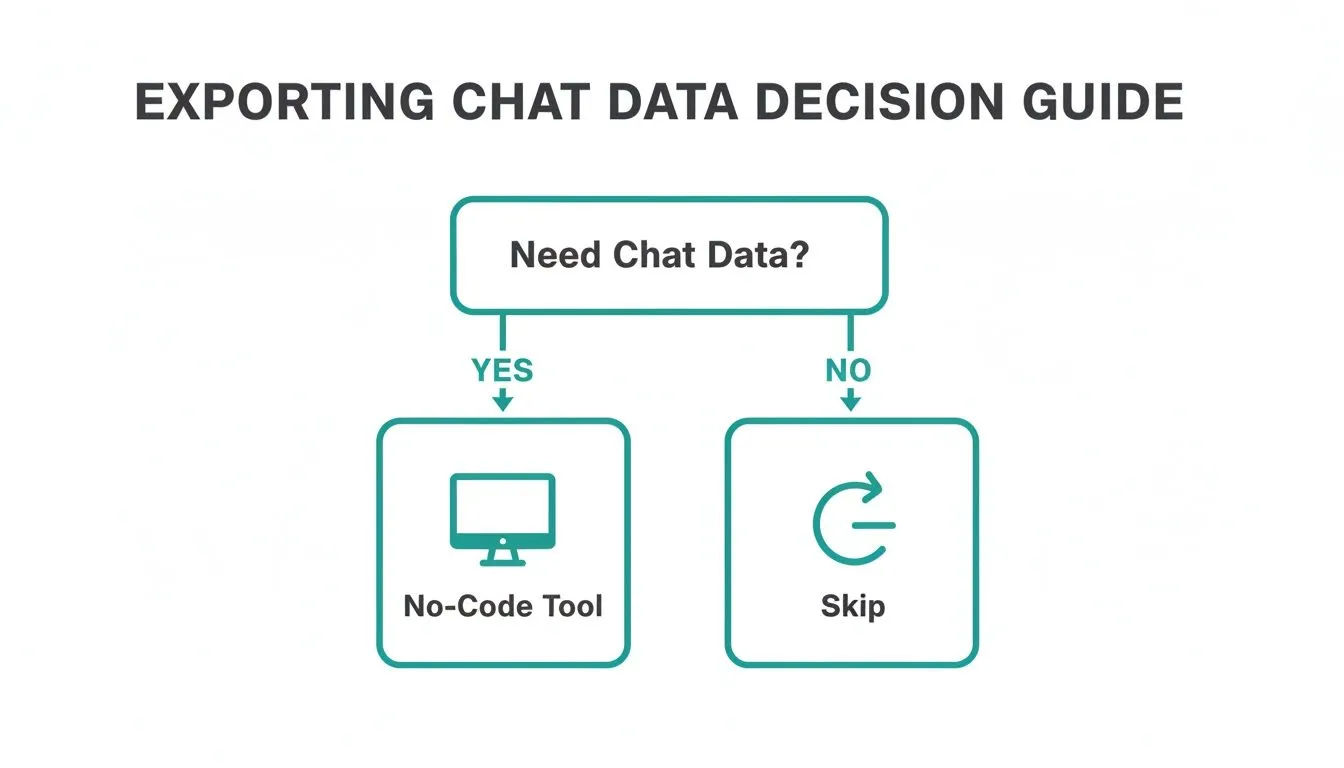
As you can see, a no-code tool is the most direct path to getting a structured, useful export without pulling your hair out.
The Technical Rabbit Hole: Using the YouTube API
On the other end of the spectrum is the YouTube Data API. For developers, it looks like the ultimate solution, offering total control to programmatically pull chat data. But this path is paved with technical hurdles that most people don’t have the time for.
It all starts in the Google Cloud Console, a place that can be notoriously confusing. You’ll have to set up a new project, figure out which specific API to enable, generate credentials, and handle OAuth authentication. You do all of that before writing a single line of code.
The YouTube API is a powerful system, but it’s built for developers creating full-blown applications, not for a creator or marketer who just needs to export comments from a past stream. The time you’d sink into learning the API, writing scripts, and dealing with quotas just doesn’t add up for a one-off task.
Coding, Quotas, and Constant Maintenance
Once you’re finally set up, the real work begins. You’ll need to write a script, usually in a language like Python, to make requests, paginate through the results, handle API errors, and parse everything into a clean CSV or JSON file. This isn’t a one-and-done job, either. Scripts break and require maintenance as the API evolves.
Even if you get all that working, you’ll slam into YouTube’s strict usage quotas. The API limits how many requests you can make per day. A single long stream with tens of thousands of comments could easily burn through your entire daily quota, forcing you to stop and wait 24 hours to continue. While comprehensive YouTube API guides can help navigate this, it remains a complex and time-consuming project.
Comparing Live Chat Export Methods
To make it easier to see the trade-offs, here’s a head-to-head comparison of the main approaches for getting your live chat data.
| Method | Ease of Use | Speed | Data Quality | Best For |
|---|---|---|---|---|
| No-Code Tool | Very Easy | Very Fast | Excellent | Creators, marketers, and researchers who need reliable data quickly. |
| YouTube Data API | Very Difficult | Slow (Setup & Rate Limits) | Excellent (if coded correctly) | Developers with time and a specific, recurring need for custom data pulls. |
| Manual Copy-Paste | Easy | Fast (for short streams) | Very Poor | Extremely short videos where you only need the raw text and no metadata. |
As the table shows, unless you have a development team or are a coder yourself, the API is often more trouble than it’s worth for this task. And the manual method barely qualifies as a real solution for professional use.
How to Turn Exported Chat Data into Actionable Insights
So, you’ve managed to export your YouTube live chat comments and now have a nice, structured file. Great. But that’s just the starting line. The real magic happens when you turn that raw data into clear strategies for your channel.
That file sitting on your computer is a goldmine. You just need the right tools to start digging.
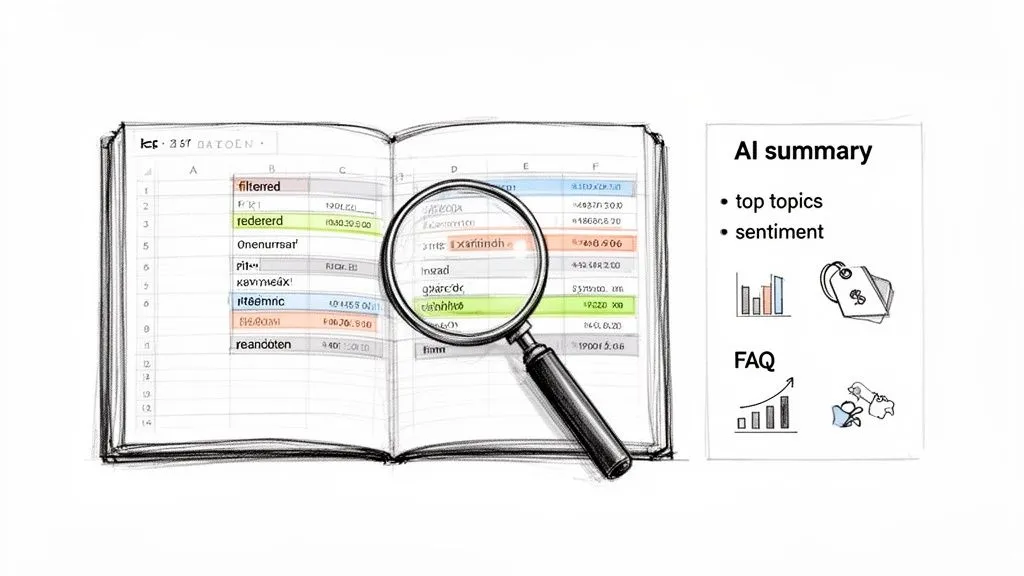
The quickest way to get started is by opening your XLSX or CSV file in a spreadsheet program like Microsoft Excel or Google Sheets. Right away, you’ll see clean columns for the author, timestamp, and the comment itself. This is already a massive improvement over trying to re-watch a chaotic chat replay.
Now you can actually start making decisions.
From Spreadsheet to Strategy
With your data neatly laid out, you can start pulling out some genuinely useful insights. I always start by finding the most active people in the community. A simple sort on the “Author” column groups all the comments by user, instantly showing you who your biggest supporters are.
Here are a few practical things you can do immediately:
- Find Your Super-Fans: Create a quick pivot table to count how many comments each user posted. Knowing who your top contributors are is huge. Shout them out, get their feedback, and make them feel valued. It builds incredible loyalty.
- Harvest Frequently Asked Questions: Just use the search or filter function to find any comment containing a question mark (“?”). This is the absolute fastest way to build an FAQ for your website or brainstorm your next “how-to” video.
- Gauge Sentiment on Key Topics: Did you just announce a new feature or product? Search for its name and see what people said. You’ll get raw, unfiltered feedback that a formal survey could never capture.
The real power of an exported chat file isn’t just archiving the conversation. It’s about transforming that conversation into a searchable database of audience feedback, questions, and sentiment that you can query on demand.
Think about it: a marketer can track the exact moment sentiment shifted during a live product launch just by matching comment timestamps to the video’s timeline. That level of detailed analysis is flat-out impossible without a structured export.
Advanced Analysis for Deeper Insights
Spreadsheets are fantastic, but your exported data can also power more advanced workflows. The different file formats you can choose when you export are actually designed for different kinds of analysis, which opens up some really powerful options.
For instance, AI summarization tools can take thousands of comments and boil them down into major themes and a sentiment report. This is a lifesaver for long streams that had a ton of chat activity.
A clean TXT export, for example, is perfectly formatted to be pasted directly into an AI model like ChatGPT. You can prompt it with something like, “Summarize the main topics of discussion here” or “Identify the top five most common questions,” and get an instant report. It saves you from having to manually read every single message. If you want to see this in action, check out our guide on the AI Analyzer.
If you’re a bit more technical, a JSON file is your new best friend. This format is ideal for building custom dashboards or visualizations, like a chart showing comment volume over time. You could create a graph that pinpoints spikes in chat engagement, helping you find the most exciting moments of your stream to turn into highlight clips. This is how you move from just collecting data to building true strategic intelligence for your content.
Managing and Analyzing Large-Scale Comment Exports
So, your live stream blew up. Congratulations! The flip side? You’re now staring at a chat replay with hundreds of thousands of comments, and it feels completely impossible to sort through. This is where you need a smart game plan for handling large-scale comment exports to pull out the real insights.
Let’s be clear: manually copying and pasting this much data is a non-starter. You’ll end up with a messy, jumbled text file that will crash just about any text editor you try to open it with. Even worse, it strips out all the crucial metadata, like author handles and timestamps, leaving you with a data-cleaning nightmare before you even get a chance to analyze anything.
The only practical way forward is using a dedicated tool that gives you a clean, structured XLSX or CSV file. This keeps every single comment neatly organized with its associated data, which means spreadsheet software like Excel or Google Sheets can actually open and work with the file without freezing up.
Strategies for Taming Massive Datasets
Trying to read through tens or hundreds of thousands of comments one by one is a fool’s errand. The real key is to analyze your data in focused chunks. Instead of trying to drink from the firehose, use the timestamp data to zero in on specific moments from your stream.
For example, did you run a poll, announce a price drop, or ask your audience a direct question? Just filter your export to show only the comments from those exact minutes. Suddenly, that overwhelming mountain of text becomes a manageable focus group, giving you targeted feedback on the moments that mattered most.
To spot bigger trends, you’ll want to get comfortable with spreadsheet functions like PivotTables. They do the heavy lifting for you.
- You can create a PivotTable to count comments per user, which instantly reveals who your most engaged community members are.
- Try filtering messages that contain a question mark (“?”) to quickly pull together a Q&A summary from the stream.
- Search for specific keywords like “price,” “confusing,” or “awesome” to get a quick pulse on audience sentiment about different topics.
These simple functions can surface patterns that would be completely invisible if you were just scrolling through a raw text dump.
The goal with large exports isn’t to read every single comment. It’s to use the structured data and smart filtering to quickly find the most important trends, top contributors, and key moments in the conversation.
Building a Long-Term Comment Archive
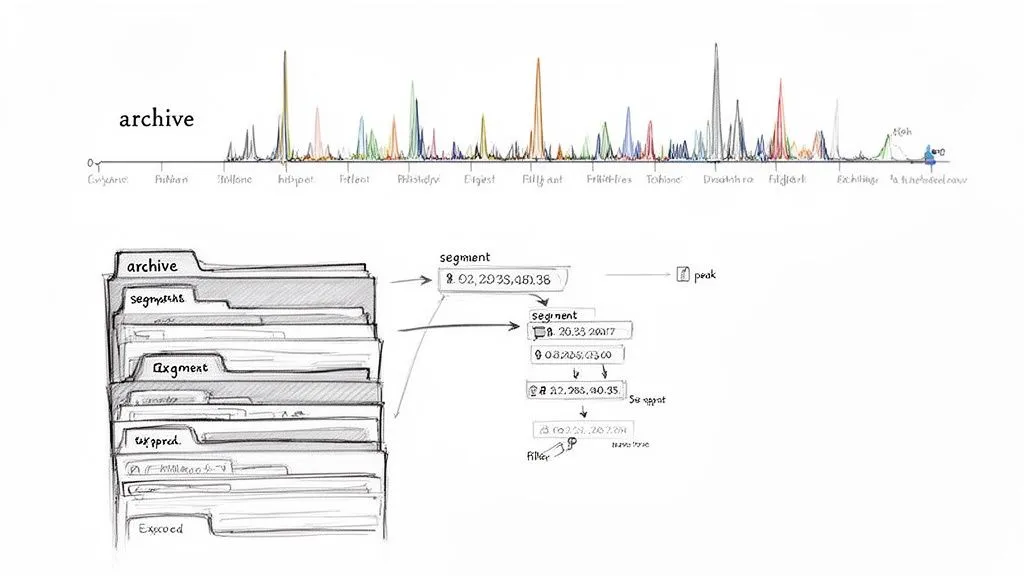
Once you’ve analyzed an export, don’t just toss it in the trash. By keeping an organized archive of your live stream chats, you can track how your audience and community evolve over time. All it takes is a simple folder system on your computer, organized by date or stream topic.
This historical data is gold. Imagine being able to compare the chat activity from this year’s product launch to one from last year. Did you get more questions this time? Was the overall sentiment more positive? This long-term perspective helps you fine-tune your content strategy based on real, historical trends.
By using the right export tool and these analytical approaches, you can confidently export YouTube live chat comments no matter the scale. What once looked like an insurmountable wall of text becomes a powerful, searchable database for truly understanding your audience.
Frequently Asked Questions
Still have a few things you’re wondering about when it comes to exporting YouTube live chat comments? Let’s clear up some of the most common questions I hear.
Can I Export Live Chat Comments from a Past Stream?
Absolutely. As long as the stream has a public chat replay available, a good tool can pull that data. It doesn’t matter if the stream was yesterday or years ago. All you need is the video’s URL.
The magic is that the tool grabs the entire chat history, complete with timestamps that sync perfectly with the video. This lets you analyze the exact moment a topic spiked in conversation, even long after the live event has ended.
What Is the Best Format for AI Sentiment Analysis?
This really comes down to your goal. If you’re looking for a quick, straightforward way to analyze topics or sentiment with an AI like ChatGPT, a clean TXT format is your best friend. Our YouTube Comments Downloader creates a TXT file that’s ready to be pasted directly for analysis, giving you instant summaries without any fuss.
On the other hand, for more advanced projects like building a custom data dashboard or running your own scripts, JSON is the superior choice. It structures every single comment with its metadata, like the author and timestamp, making it far easier for your code to read and process.
Is It Legal to Export Public YouTube Comments?
I get this question a lot, and the short answer is yes. You’re simply accessing and organizing publicly available information. The tools don’t download anything private; they just collect the same data you could see by manually watching the chat replay on YouTube. This generally falls under fair use for personal analysis.
The important thing is what you do with the data. The key is to be responsible. Always stick to YouTube’s terms of service and be mindful of general privacy principles when you’re working with the exported information.
Ready to stop guessing what your audience is thinking and start analyzing their feedback? The YouTube Comments Downloader turns chaotic live chats into organized, analysis-ready data in seconds. Get the real insights you need to grow your channel, improve your products, and build a stronger community. Start your free download and export your first live chat today!