
7 months ago
Download youtube comments to excel: Quick Guide to Export YouTube Data
So, you’re looking to download YouTube comments to Excel. The good news is you can skip the soul-crushing copy-and-paste marathon. The fastest path is a dedicated no-code tool that pulls comments directly into a clean XLSX file, keeping all the good stuff like replies, likes, and timestamps intact without you lifting a finger. It turns a chaotic mess of feedback into a spreadsheet ready for analysis in just a few minutes.
Why Your Next Big Insight Is Buried In YouTube Comments
Let’s be honest: YouTube isn’t just for cat videos anymore. It’s one of the biggest public focus groups on the planet. The comment sections are a raw, unfiltered stream of what people really think, full of product ideas, honest feedback, and trends you won’t see coming. For creators, researchers, or anyone in marketing, this is where the gold is.

But trying to mine that gold by hand is a losing battle. With thousands, sometimes hundreds of thousands, of comments on a single video, manual copying is not only painfully slow but also incredibly inaccurate. You’ll inevitably miss threaded replies, lose the context of like counts, and want to throw your computer out the window.
The Value of Structured Comment Analysis
The real magic happens when you analyze this data at scale. Instead of scrolling for hours, dedicated tools let you download YouTube comments to Excel for a proper, structured review. What was once a wall of text becomes a dataset you can actually work with.
Think about what you could do with that:
- A beauty brand could instantly filter comments for “please make this in blue” and spot a new product opportunity.
- A finance creator could sort comments by reply count to see which concepts are sparking the most debate and confusion.
- A marketing agency could track brand sentiment on a competitor’s channel, analyzing thousands of comments to see how perceptions change over time.
The goal here is to turn unstructured chatter into structured data. Once your comments are neatly organized in Excel, you can sort, filter, and search for patterns that are simply invisible when you’re just scrolling through a webpage.
A Goldmine of Audience Data
The sheer potential here is staggering. YouTube has a massive 2.53 billion people you can reach through ads, making it the second-largest social platform on earth. That audience leaves billions of comments, turning every video, Short, and community post into a treasure trove of consumer insights.
By exporting this data, you’re tapping into a powerful resource for making smarter decisions. It’s not just about reading what people are saying; it’s about understanding the why behind their feedback. You can even dive deeper by learning about discourse analysis methods to interpret these conversations on another level. A clean Excel file is the first, most critical step to unlocking it all.
The No-Code Method For Instant Comment Exports
If you need to get YouTube comments into Excel and have zero interest in coding, I’ve got good news. The whole process can be surprisingly fast and straightforward. Forget wrestling with scripts. With a tool like the YouTube Comments Downloader, you can go from a video link to a clean spreadsheet in less than a minute.
It’s built for one thing: speed. You just grab the URL from the YouTube video, channel, or playlist you want to analyze, paste it into the tool, and it starts working immediately.
What I really appreciate is the lack of queues or processing delays. When you’re on a deadline for a report, the last thing you want to see is a “you’re number 57 in the queue” message. This tool bypasses that frustration entirely.
From URL To XLSX In Seconds
To make this work seamlessly with Excel, you have to choose the right export format. While you might see a few options, always go for XLSX. This ensures every piece of data, the comment text, author, and likes, drops neatly into its own column, ready for you to sort and filter.
Once you’ve pasted your URL, the interface gives you clear choices for the export. The screenshot below shows the last step, right before you hit the download button.
As you can see, it really is just a few clicks. The goal here is to remove any technical roadblocks, so anyone can pull this data without needing a developer. You just point it at the video and tell it you want an Excel file.
The best no-code tools are defined by what they don’t make you do. They don’t need your password, they don’t ask you to write code, and they don’t make you wait. They just give you the data.
This is a huge advantage over most browser extensions, which I’ve found can be unreliable. They often break after a YouTube site update, leaving you stranded. A dedicated web tool is professionally maintained, so it almost always just works.
Preserving The Data That Matters
Simply copying and pasting comments from a YouTube page is a waste of time. You lose all the valuable context that makes the data useful for any real analysis. A good downloader saves all of it.
Here’s the kind of essential data a proper export will give you:
- Threaded Replies: Conversations are rarely a single line. The tool organizes replies under their parent comments, so you can actually follow a back-and-forth discussion.
- Author Handles: Knowing who is talking is critical. The export includes the author’s name and their unique @handle.
- Timestamps and Likes: You can sort comments by likes to instantly find the most popular feedback. Timestamps are also gold, letting you see how sentiment evolved in the hours and days after a video was published.
These details are non-negotiable for anyone doing serious work. Imagine you’re a marketer trying to measure a campaign’s launch. You could filter for all comments posted in the first 24 hours and sort by like count to see what resonated most with the audience, right away. That kind of insight is only possible with a structured export that gets you an analysis-ready file from the start.
Exploring Your Options: A Practical Comparison
When you need to download YouTube comments to Excel, you’ll quickly discover there are several ways to get the job done. They are not all created equal. Each method seems to promise a simple solution, but they differ dramatically in reliability, speed, and the actual quality of the data you get. I’ve been down all these roads, and I can tell you that choosing the right path from the start saves a ton of headaches.
Think of it like this: your goal is a clean, organized Excel file. Some paths get you there directly, while others lead to dead ends and frustration.
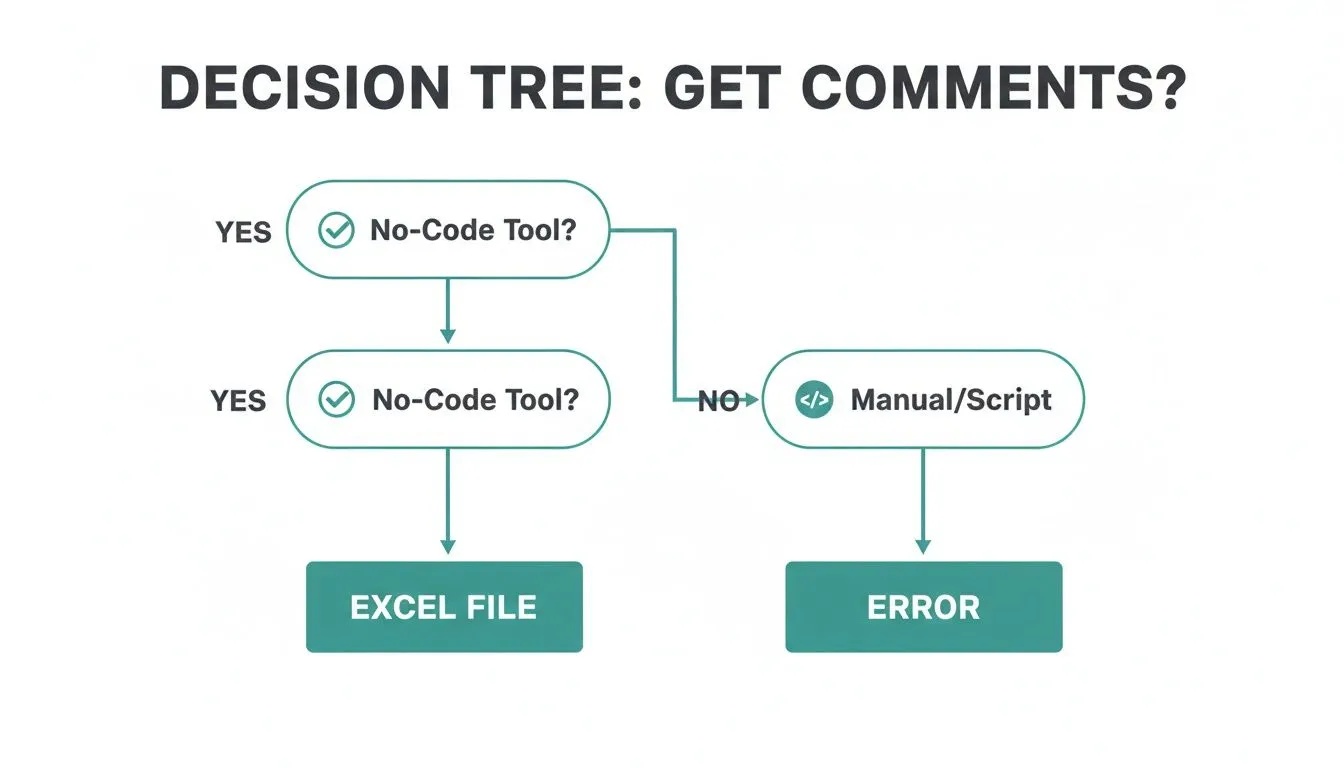
As you can see, a dedicated tool is the most direct route. Let’s break down why the other options often fall short.
Browser Extensions: The Easy but Fragile Option
Browser extensions feel like the most obvious starting point. You install one, and a download button magically appears right on the YouTube page. It’s tempting, I get it. But this convenience comes with a major catch.
From my own experience, these extensions are incredibly brittle. A small, unannounced change to YouTube’s layout can break them overnight, leaving you stranded right when you have a deadline. They also tend to choke on videos with a lot of engagement, frequently crashing or timing out when faced with thousands of comments.
The fundamental weakness of most extensions is their reliance on the live YouTube page. They’re designed for casual, one-off downloads, not for reliable, large-scale data work.
Other Web Tools: The Queueing Game
Next up are the various other web-based tools you’ll find online. While some can work in a pinch, many introduce their own set of problems that just slow you down. It’s pretty common to submit a URL only to find yourself stuck in a processing queue, waiting for your turn.
Worse yet, many of these tools skimp on the data, leaving out crucial context like threaded replies, like counts, or author handles. This turns what should be a quick task into a frustrating waiting game that yields incomplete data. For those looking beyond comments, other no-code YouTube to text converter tools can help with different tasks, but they don’t solve the comment extraction problem.
Python Scripts: The Power and the Pain
If you can code, building your own Python script feels like the ultimate power move. You get total control. You can pull the exact data fields you need and format them precisely for your analysis.
But this path isn’t for everyone. It requires a serious investment of time upfront to write, debug, and maintain the script. And you become its sole support technician. When YouTube inevitably updates its API or site structure (and it will), your script will break, and it’s all on you to fix it. This approach trades out-of-the-box convenience for a constant maintenance chore. If you’re interested in scaling this up, you might want to learn more about how to bulk download YouTube comments, which adds another layer of complexity.
Comment Download Methods Compared
To make the choice clearer, here’s a quick comparison of the different approaches.
| Method | Ease of Use | Speed | Data Richness (Threads, Likes, etc.) | Best For |
|---|---|---|---|---|
| Dedicated Tool (No-Code) | Excellent | Very Fast | High (Includes replies, likes, etc.) | Marketers, researchers, and anyone needing reliable, detailed data quickly. |
| Browser Extension | Good | Slow to Moderate | Low to Moderate | Casual users downloading a small number of comments from one video. |
| General Web Tools | Fair | Slow (Queues are common) | Low | Users who aren’t in a hurry and only need basic comment text. |
| Python/Custom Script | Poor (Requires coding) | Fast (once built) | Very High (Fully customizable) | Developers and data scientists with specific needs and time for maintenance. |
Ultimately, for fast, reliable, and deep data without the technical overhead or frustrating waits, a dedicated tool like YouTube Comments Downloader is the most practical choice for the vast majority of users.
Putting Your Excel File to Work: Finding the Gold in the Comments
Alright, you’ve pulled all those YouTube comments into an XLSX file. That’s the first hurdle cleared. But the real magic happens now, turning that wall of text into something you can actually use for your content strategy, market research, or reports. Think of it this way: you’ve just organized a chaotic town hall meeting into a neat, searchable spreadsheet.
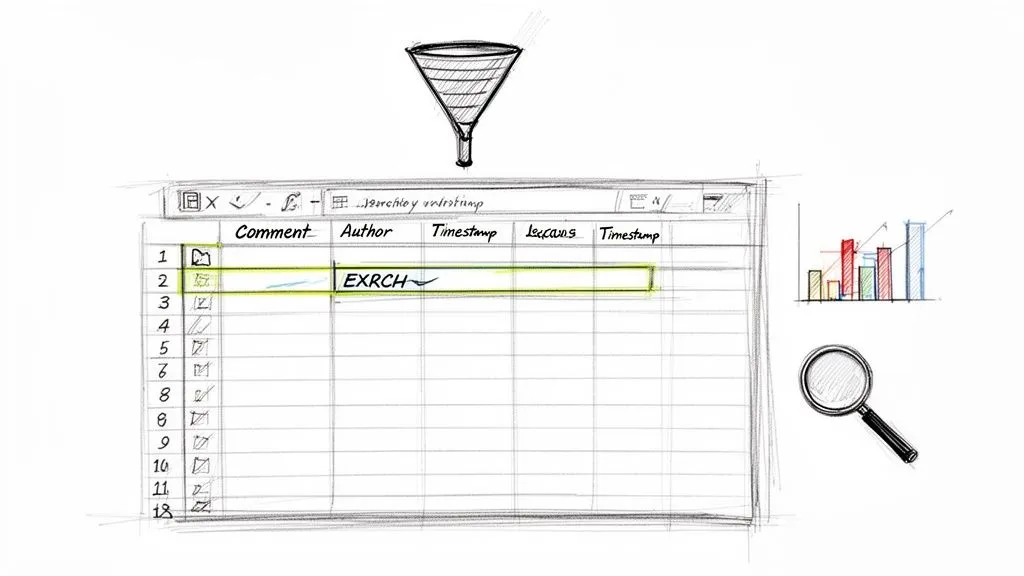
That file isn’t just a simple list. It’s packed with columns of data, each one a different lens for understanding what your audience is really thinking. Let’s dive into how you can start filtering and sorting to find the good stuff.
First Steps in Excel: Cleaning and Quick Analysis
Before you do anything else, you’ll want to get your data organized. The easiest way to start is with Excel’s built-in Filter function. Just click the top row (the one with the headers like ‘Comment,’ ‘Likes,’ etc.), head over to the ‘Data’ tab, and hit ‘Filter.’ You’ll see little dropdown arrows pop up on each column.
Now you have some serious control. Here are a few immediate things I always do:
- Find the Most-Loved Comments: Click the dropdown on the ‘Likes’ column and select ‘Sort Largest to Smallest.’ Instantly, the comments that resonated most with your audience jump to the top. This is a fantastic way to see what ideas or feedback got the most positive reinforcement.
- Identify the Liveliest Threads: Do the same for the ‘Reply Count’ column. Sorting by the highest number of replies shows you which comments sparked a real conversation. These threads are often where you’ll find nuanced debates, deep-seated opinions, or passionate user questions.
- Weed Out the Noise: YouTube is a massive platform, and spam is a reality. In a recent quarter alone, 1.448 billion comments that violated policies were removed. While our tool cleans up a lot, you can use the ‘Text Filters’ option to hide comments containing common spam words, letting you focus on genuine feedback.
The real power comes when you combine these filters. For example, I often filter for comments with more than 10 replies and then sort those by likes. This pinpoints the most influential and engaging conversations in a sea of feedback.
Digging Deeper with Specific Data Fields
Beyond basic sorting, the other columns in your export offer some incredibly practical shortcuts.
The Permalink column is a personal favorite. It’s a direct link to that specific comment on YouTube. If you find a piece of feedback that’s particularly insightful or confusing, you can click the permalink to jump straight to the conversation and see the full context. It’s perfect for verifying sentiment or sharing an exact example with your team.
Once you have your comments sorted, you can start looking for patterns, just like you would with any other text-based data. The goal is to summarize information and turn insights into action, not just read an endless list. Use Excel’s ‘Find’ tool (Ctrl+F) to search for keywords related to your product, specific features, or common questions you see popping up.
Of course, sifting through thousands of comments can still feel like a chore. If you want to speed things up significantly, our AI Analyzer is built for this exact purpose. It takes your exported file and automatically identifies key themes, sentiment, and trends, saving you hours of manual digging. It essentially turns your spreadsheet from a starting point into a launchpad for much deeper analysis.
Advanced Strategies for Marketers and Researchers
Pulling comments from a single video is useful, but the real power comes from thinking bigger. For anyone in marketing, data analysis, or research, learning to download YouTube comments to Excel at scale turns a simple social media platform into a goldmine for competitive intelligence and audience understanding. You can stop spot-checking individual videos and start mapping out trends across entire channels, or even over several years.
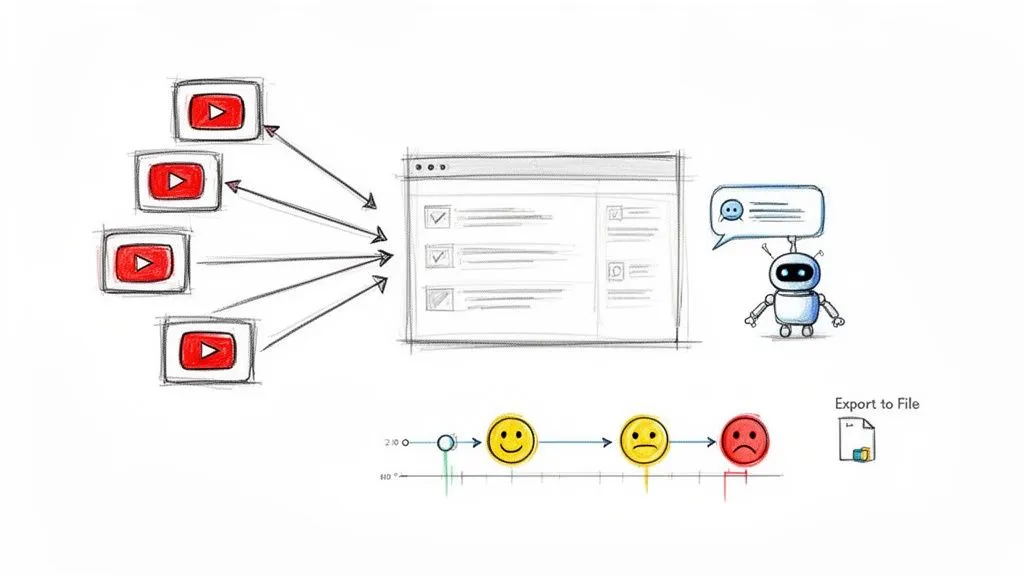
Let’s say you want to get a read on a major competitor. Using a tool like YouTube Comments Downloader, you can grab the comments from their entire channel. Suddenly, you have a massive dataset right in Excel.
From there, you can start digging. Look for weaknesses in their products, find common customer complaints, or even spot features their audience is begging for. I’ve had great success by simply filtering the comments from the last six months for words like “wish,” “problem,” or “broken.” It’s a surprisingly fast way to build a list of opportunities your own brand can jump on.
This same strategy is perfect for tracking your own brand’s health. By regularly exporting comments from your channel, you build a historical log of audience feedback. Did sentiment dip after a big product launch or a change in your content? With all the data organized in Excel, you can pinpoint the exact moment the conversation started to shift.
Supercharge Your Analysis With AI and TXT Exports
While Excel is fantastic for structured data, sometimes you just need to grasp the big-picture themes and feelings within thousands of comments. This is where combining your export with AI becomes a game-changer. Our tool has a TXT export format that’s built specifically for this workflow.
You can take that clean text file and feed it straight into an AI model like ChatGPT. This lets you perform sophisticated analysis that would otherwise take days of manual reading and sorting.
For instance, you could prompt the AI with your exported text and ask it to:
- “Categorize these comments into five main themes.”
- “Identify the top three most requested features mentioned in this text.”
- “What is the overall sentiment (positive, negative, neutral) of these comments regarding the new update?”
This technique closes the gap between raw data collection and genuine strategic insight. It automates the grunt work of reading and sorting, freeing you up to focus on what the data actually means for your business or research.
Uncovering Insights From Live Streams and Community Posts
Don’t forget about the valuable data tucked away in live stream chats and community posts. A live stream chat replay is essentially a second-by-second transcript of your audience’s reactions during a key event. Exporting that chat gives you a time-stamped log of feedback, letting you see exactly which moments generated the most buzz, or the most confusion.
Community posts often spark entirely different kinds of conversations. I’ve seen marketing teams export comments from a poll to analyze the why behind people’s votes, not just the what. You might even discover emerging micro-influencers who consistently engage with your brand. These advanced methods transform a simple comment downloader into a complete research platform.
Frequently Asked Questions
Diving into comment exports for the first time can bring up a few important questions. You want to make sure the process is safe, that the tool can handle the scale you need, and that the data you get is actually useful. Let’s walk through the common concerns I hear all the time.
Is It Safe and Legal to Download YouTube Comments?
This is the first question on everyone’s mind, and the short answer is yes, it’s generally safe and allowed when you’re dealing with public data. Our tool only accesses information that is already publicly visible on YouTube, the same stuff you see when you scroll through the comments section yourself.
We will never ask for your YouTube login or any personal account details. This is a critical safety point; it means your channel and account remain completely secure.
The process is designed to work within YouTube’s guidelines for accessing public data. That said, what you do with the data is your responsibility. The ethical approach is to use it for analysis while respecting the privacy of the commenters. A good rule of thumb is to avoid republishing comments with personal information without explicit consent.
How Many Comments Can I Download at Once?
Scale is where most tools fall apart. You might have tried a browser extension that worked fine on a video with a few hundred comments, only to see it crash and burn when pointed at a viral video with thousands.
Our system was built specifically to avoid this problem. We’ve seen it handle some massive projects, like exporting 750,000 comments from over 3,000 videos in less than 30 minutes.
The key difference is that there are no queues. Your export begins the moment you click the button. This is non-negotiable for serious marketing analysis or academic research where you can’t afford to be stuck waiting.
This kind of power means you can tackle major projects with confidence, knowing the tool won’t be the bottleneck.
What Data Is Included in the Excel Export?
A raw text file of comments is messy and hard to analyze. That’s why the export you get is a clean, organized XLSX spreadsheet, ready for filtering, sorting, and pivoting in Excel.
Each comment gets its own row, broken down into several useful columns. Here’s a look at what’s inside:
- The complete comment text
- The commenter’s author name and their unique @handle
- A direct permalink to the comment for quick verification
- The exact timestamp of when it was posted
- The total number of likes
- The total count of replies
Most importantly, the export preserves the entire conversation structure. Replies are nested under their parent comments, so you can follow a whole discussion from start to finish. This gives you the full context, which is far more insightful than just a list of disconnected remarks.
Ready to turn YouTube comments into actionable insights without the hassle? YouTube Comments Downloader offers the fastest, most reliable way to get analysis-ready data. Try it for free and see how quickly you can get started. https://youtubecommentsdownloader.com