7 months ago
Mastering The YouTube Comment Scraper API in 2026
At its core, a YouTube comment scraper API is a gateway for programmatically pulling public comments from videos, channels, and even live streams. It is all about turning those unstructured, often messy, public conversations into clean, organized datasets you can actually work with. Think comment text, author handles, like counts, and full reply threads, all ready for analysis.
Your Quick Reference for Scraping YouTube Comments
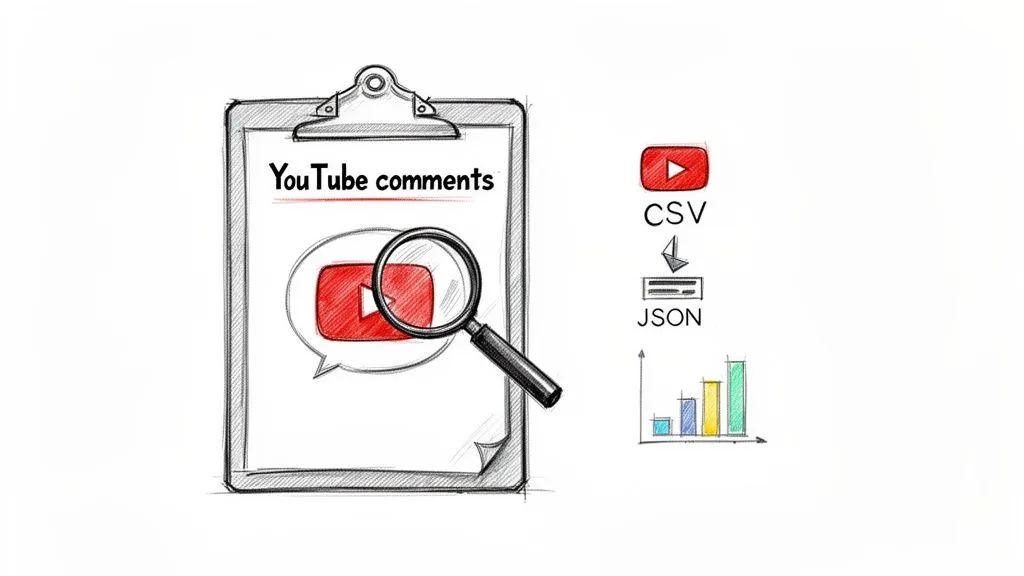
If you’ve ever tried to analyze audience feedback at scale, you know the struggle. While YouTube provides its own Data API, it is notorious for strict quota limits that make any serious, large-scale data collection a real headache for researchers and marketers. This is where a dedicated comment scraper API comes in.
These specialized APIs are built to bypass those limitations, letting you pull thousands or even millions of comments without getting cut off. This kind of power is essential for building a complete picture for sentiment analysis, market research, or just tracking what people are saying about a brand. For creators, it’s a goldmine for understanding what your audience really wants, finding their pain points, and sparking new content ideas.
The Real-World Advantages of a Specialized API
A dedicated API focused solely on YouTube comments offers some clear benefits for anyone serious about data. To put it simply, these tools are built for volume and detail, giving you an edge that the standard API can’t match.
The table below breaks down the key features that make a specialized API the go-to choice for comprehensive comment analysis.
| Feature | Description | Practical Use Case |
|---|---|---|
| High-Volume Scraping | Designed to handle large-scale requests, bypassing the restrictive quotas of the official YouTube API. | Collecting millions of comments from a popular channel to perform comprehensive sentiment analysis. |
| Thread Preservation | Captures the parent-child relationships between original comments and their replies, maintaining context. | Analyzing conversational dynamics and tracking how discussions evolve within a thread. |
| Rich Metadata | Extracts detailed data points beyond just text, including author names, likes, reply counts, and dates. | Identifying the most-liked comments to find popular opinions or influential users in a niche. |
| Structured Output | Delivers clean, organized data in formats like CSV or JSON, ready for immediate use. | Directly importing comment data into a spreadsheet or data visualization tool like Tableau. |
Ultimately, these features translate into faster, more reliable, and more insightful data collection projects.
The demand for these insights is exploding. In fact, the market for services that enable tools like a YouTube comment scraper API is on track to hit USD 2.23 billion by the end of the decade. This isn’t surprising when you consider the sheer volume of valuable public opinion buried in YouTube comments. If you’re curious about the manual approach first, check out our guide on how to download YouTube comments.
A key application is transforming raw, unstructured comment data into structured formats like CSV or JSON. This makes the information immediately usable in spreadsheets, databases, or AI tools for sentiment analysis and trend spotting. Find out more about the explosive growth of social media insights and learn what powers this trend on Scrapingbee.com.
Navigating API Authentication and Rate Limits
Before you can pull a single YouTube comment, you need to understand the API’s ground rules. This really boils down to two things: authenticating your requests to prove you have access, and respecting the rate limits that keep the service running smoothly for everyone.
Think of your API key as your personal access pass. It is a unique string of characters that you will need to include with every request you send. It is how the API identifies you, confirms you have permission to fetch data, and tracks usage against your account plan. You’ll typically find this key waiting for you in your user dashboard right after you sign up.
Best Practices for API Key Security
It’s critical to treat your API key with the same security you would a password. If it gets into the wrong hands, someone else could burn through your credits or even get your account blocked.
Here are a few solid practices I always recommend for keeping your key safe:
- Use Environment Variables: The simplest and most effective method is to store the key as an environment variable on your server or local machine. This keeps it completely separate from your source code.
- Utilize a Secrets Manager: For production-level applications, step up your game with a dedicated tool. Services like AWS Secrets Manager, Google Secret Manager, or HashiCorp Vault are built for this.
- Implement Key Rotation: As a good security habit, or if you ever suspect a key has been compromised, generate a new one from your dashboard and swap out the old one in your apps.
Understanding and Managing Rate Limits
Once you’re authenticated, the next piece of the puzzle is rate limiting. These are the rules that dictate how many requests you can make in a given period, like per minute or per second. These limits aren’t there to annoy you; they ensure the API remains stable and responsive for all users. It is also wise to get familiar with how different platforms approach their own rate limits.
A classic mistake is to hammer the API with a huge burst of requests all at once. This almost always triggers a temporary block, especially when you’re trying to perform a bulk export from a large channel or playlist.
A smart script always accounts for rate limits. For example, if the API allows 60 requests per minute, the best approach is to build a one-second pause into your code between each call. This simple bit of pacing prevents you from hitting the ceiling and getting an error. If you do exceed the limit, most APIs will send back a 429 Too Many Requests status code, which your application should be ready to handle by waiting a bit before trying again.
Exploring API Endpoints and Request Parameters
At its core, working with any API comes down to understanding two things: endpoints and parameters. Think of endpoints as the specific URLs you send requests to. Each one is designed for a particular job, like grabbing comments from one video or from an entire channel.
Parameters are how you tell the endpoint exactly what you want. They let you filter, sort, and refine your request. It is the difference between asking for “all the comments” and asking for “the 100 most popular comments from the last week.” Getting this right is key to pulling the precise data you need for your analysis.
Getting Comments From a Single Video
Most of the time, you’ll probably start by pulling comments from a single video. This is the bread and butter of comment analysis, perfect for seeing how an audience reacted to a specific product review, a marketing campaign, or a controversial topic.
All you need to get started is the video’s unique ID. You can find it right in the URL. For example, in https://www.youtube.com/watch?v=dQw4w9WgXcQ, the videoId is dQw4w9WgXcQ.
Here are the parameters you’ll work with:
videoId(Required): This is the one piece of information you absolutely must provide. It tells the API which video to target.maxResults(Optional): Use this to set a cap on the number of comments you get back. It is handy for a quick analysis or if you only care about the most recent feedback.sortOrder(Optional): This lets you choose how the comments are sorted. Your main options aretop(for the most liked or engaged-with comments) andnewest(for a simple chronological feed).
A pro-tip is to combine these. For example, setting
sortOrdertotopis a fantastic way to instantly surface the comments that drove the most conversation. These are often where you’ll find the most insightful, funny, or representative opinions.
Extracting Comments From an Entire Channel
What if you need a bigger picture? For tracking brand health or understanding a creator’s community over the long haul, you’ll want to pull comments from every video on their channel. A dedicated channel endpoint saves you from having to fetch comment data from each video one by one.
For this, you’ll need the channel’s ID, which is a unique string that usually starts with “UC”. The endpoint then does the heavy lifting, going through all the public videos on that channel and compiling the comments for you.
These are the parameters you’ll use:
channelId(Required): The unique identifier for the YouTube channel you want to analyze.maxCommentsPerVideo(Optional): This is a really important one for managing scope. It lets you limit how many comments are pulled from each video, preventing a single viral hit from dominating your dataset.
Targeting Playlists, Shorts, and Live Chats
YouTube isn’t just standard videos anymore, and a good API needs to keep up. You’ll often find crucial community interaction in other formats like Playlists, Shorts, and Live Streams.
Fortunately, there are specialized endpoints for these, too:
- Playlist Comments: Just like the channel endpoint, you can provide a
playlistIdto gather comments from every video in a specific series. This is great for analyzing a tutorial series or a product showcase. - YouTube Shorts Comments: Shorts have their own unique, fast-moving comment sections. A dedicated endpoint is built to handle the rapid-fire, often emoji-filled nature of these conversations.
- Live Stream Chat Replays: The chat replay from a live stream is a goldmine of real-time audience reaction. This endpoint gathers the entire chat log, preserving timestamps so you can connect comments to specific moments in the stream.
Handling Pagination and Reconstructing Comment Threads
When you’re trying to pull comments from a popular video, you’ll quickly realize they don’t all come back in one big chunk. The YouTube API sends data back in “pages,” and knowing how to work through them is a non-negotiable skill for gathering a complete dataset. This method, called pagination, keeps API requests from getting bogged down and ensures you get a response quickly, even on videos with millions of comments.
The key to this entire process is the nextPageToken. If your API request has more comments to deliver, the response will include this token. To fetch the next batch, you just run the same request again but add the new token as a parameter. You keep doing this until the API no longer returns a nextPageToken. That’s your signal that you’ve hit the last page.
Looping Through Comment Pages
To manage pagination properly, you’ll need a simple loop in your script. The logic is quite direct: make your initial request, process the comments you receive, and then check if a nextPageToken was included in the response. If it was, you use that token to fire off your next request, and you repeat this until there are no tokens left.
This iterative approach is fundamental for any serious data analysis. Just imagine you’re trying to analyze sentiment on a viral video that has 50,000 comments. If you only grabbed the first page, you’d be looking at a tiny fraction of the conversation, which would almost certainly lead to skewed, unreliable conclusions.
By looping through every single page, you build a dataset that reflects the full spectrum of audience feedback, from the most-liked comments down to the very last reply.
This same principle of fetching data in cycles applies whether you’re working with a single video, a whole playlist, or an entire channel. The starting point changes, but the method for getting all the data remains the same.
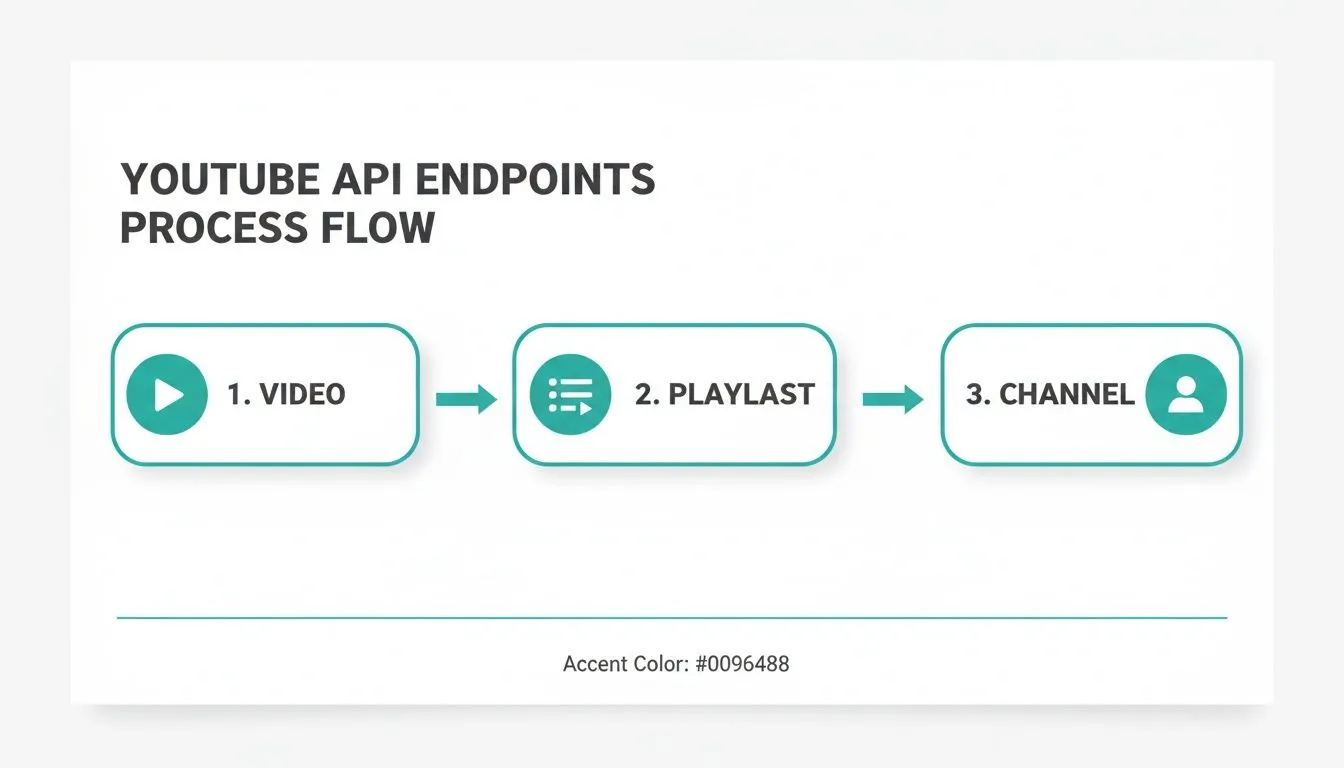
As you can see, the API works through the content systematically to gather the exact comment data you need, regardless of the target.
Reconstructing Full Comment Threads
But simply collecting a flat list of comments is only half the battle. Context is everything. A reply loses most of its meaning if you don’t know which comment it was responding to. A truly powerful YouTube comment scraper API doesn’t just grab comments; it preserves the conversational structure.
The API does this by including a parentId field with every reply. This field holds the unique ID of the original, top-level comment, creating a clear parent-child relationship. When you export your data, you can use this parentId to piece together entire discussion threads from scratch.
For example, after fetching your data, you could process the JSON response to group all replies directly under their parent comment. This unlocks much deeper forms of analysis:
- Discourse Analysis: You can track how conversations evolve and how users build on, or argue against, each other’s points.
- Identifying Key Influencers: It becomes easy to spot the users who consistently spark long and engaging discussions.
- Q&A Extraction: Quickly isolate questions asked in the comments and pair them with their direct answers.
This is what turns a simple list of comments into a rich, interconnected map of a community’s dialogue. In fact, since YouTube’s 2020 interface update made it harder to access this data manually, APIs that can extract up to 20,000 data points per video, nested replies included, have become essential. For teams building social listening tools, a good API can cut development time by an estimated 80%, letting them focus on analyzing sentiment right away. For a deeper dive into this area, check out this comparison of the best social media scraping APIs for 2026 on Xpoz.ai.
Practical Code Examples for API Requests and Responses
Theory is great, but nothing beats seeing code in action. Let’s walk through some real-world examples you can copy and paste to get started. We’ll cover Python and JavaScript, two of the most common languages for handling API data.
These snippets will show you exactly how to build a request to the YouTube Comments Downloader API and what to do with the JSON data you get back. The goal here is to get you up and running in minutes.
Python Example Using the Requests Library
For data analysis, Python is often the tool of choice. Its famous requests library makes hitting API endpoints feel almost effortless. This script shows you how to pull the top-sorted comments from any YouTube video.
First, if you don’t have the library installed, open your terminal and run:
pip install requests
Now for the code. Just be sure to swap out 'YOUR_API_KEY' with your personal API key and the example 'VIDEO_ID' with the one you’re targeting.
import requests
import json

## Your API credentials and video details
api_key = 'YOUR_API_KEY'
video_id = 'dQw4w9WgXcQ' # Example Video ID
sort_by = 'top' # Can be 'top' or 'newest'

## Construct the API endpoint URL
url = f"https://api.youtubecommentsdownloader.com/v2/comments?videoId={video_id}&sortOrder={sort_by}"

## Set the required API key in the headers
headers = {
    'x-api-key': api_key
}

try:
    # Make the GET request
    response = requests.get(url, headers=headers)
    response.raise_for_status() # This is a good practice to catch HTTP errors

    # Parse the JSON response
    comments_data = response.json()

    # A simple check to see if we got data
    if comments_data and comments_data.get('comments'):
        print("Successfully fetched comments.")
        print("First comment:", comments_data['comments'][0]['commentText'])
    else:
        print("No comments found or the response was empty.")

except requests.exceptions.RequestException as e:
    print(f"A network error occurred: {e}")
JavaScript Example Using Fetch API
Over on the JavaScript side, whether you’re in a browser or a Node.js environment, the native fetch API is the modern standard for network requests. This example does the exact same thing as our Python script: it grabs the top comments from a video.
You can run this code directly in a browser’s developer console or as part of a larger JavaScript project.
// Your API credentials and video details
const apiKey = 'YOUR_API_KEY';
const videoId = 'dQw4w9WgXcQ'; // Example Video ID
const sortOrder = 'top';

const url = `https://api.youtubecommentsdownloader.com/v2/comments?videoId=${videoId}&sortOrder=${sortOrder}`;

const options = {
  method: 'GET',
  headers: {
    'x-api-key': apiKey
  }
};

async function getYouTubeComments() {
  try {
    const response = await fetch(url, options);

    // Check if the request was successful
    if (!response.ok) {
      throw new Error(`HTTP error! status: ${response.status}`);
    }

    const data = await response.json();

    if (data && data.comments && data.comments.length > 0) {
        console.log('Successfully fetched comments.');
        console.log('First comment:', data.comments[0].commentText);
    } else {
        console.log('No comments found or an error occurred.');
    }

  } catch (error) {
    console.error('An error occurred while fetching comments:', error);
  }
}

// Call the function to execute the request
getYouTubeComments();
Understanding the JSON Response Structure
Once you make a successful request, the API sends back a clean, structured JSON object. This format is perfect for machines to read and for you to easily parse in your code.
One of the main reasons to use a dedicated API like this is the sheer richness of the data. You aren’t just getting raw text; you’re getting all the context around each comment, which is crucial for any real analysis.
Here’s a breakdown of what a single comment object looks like within the response.
{
  "comments": [
    {
      "commentId": "UgwV-...",
      "authorHandle": "@commenter_handle",
      "authorProfileImageUrl": "https://yt3.ggpht.com/...",
      "publishedAt": "2023-10-27T14:30:00Z",
      "updatedAt": "2023-10-27T14:30:00Z",
      "likeCount": 1250,
      "commentText": "This was the most insightful part of the video! Great analysis.",
      "isPinned": false,
      "replyCount": 42,
      "parentId": null,
      "isCreatorLiked": true
    }
  ],
  "nextPageToken": "abc123def456"
}
Choosing the Right Data Export Format
Pulling YouTube comments is only half the battle. The real value comes from what you do next, and that starts with choosing the right export format for the job. Think of it this way: you wouldn’t bring a spreadsheet to a software development meeting, and you wouldn’t try to run statistical analysis on a plain text file.
Picking the correct format from the outset saves you a ton of headaches later. It all comes down to your end goal. Are you doing a quick sentiment check in a spreadsheet, or are you feeding a complex dataset into a custom application? Let’s break down the options.
Spreadsheet Formats CSV and XLSX
For most people, especially marketers, researchers, and creators, the familiar territory of a spreadsheet is the best place to start. That’s where CSV (Comma-Separated Values) and XLSX (Excel Spreadsheet) come in. They are universally supported by programs like Microsoft Excel, Google Sheets, and Apple Numbers.
These formats are perfect for straightforward analysis, such as:
- Quick sentiment analysis: Just scan the comments or use simple formulas to get a feel for the audience’s reaction.
- Finding top comments: A quick sort on the
likeCountcolumn instantly reveals the feedback that resonated most. - Spotting keywords: Use the find function to see how many times a new feature, product, or topic is mentioned.
A CSV is a lightweight, plain-text file that’s incredibly fast to process, even with thousands of comments. XLSX files, on the other hand, support more advanced features like cell formatting and charts. To get started, you can learn exactly how to export YouTube comments to CSV in our step-by-step guide.
JSON for Developers and Data Scientists
When your project demands the full, untangled structure of the original data, JSON (JavaScript Object Notation) is really the only way to go. It is the native language of APIs for a reason.
The biggest advantage of JSON is its ability to handle nested data. This means it perfectly preserves the parent-child relationships within comment threads, something that gets lost in a flat format like CSV. This makes JSON essential for reconstructing entire conversations, which is critical for network analysis or in-depth academic discourse studies. It’s also the ideal format for loading data into a NoSQL database like MongoDB or working with it in a Python or JavaScript application.
Comparison of Data Export Formats
Choosing the right format depends entirely on your project’s needs. The table below offers a quick comparison to help you decide which format best aligns with your tools and analytical goals.
| Format | Best For | Key Advantage | Common Tools |
|---|---|---|---|
| CSV | Quick analysis, sorting, and keyword counts | Lightweight and universally compatible with spreadsheets | Microsoft Excel, Google Sheets, Apple Numbers |
| XLSX | Creating reports with charts and formatting | Supports advanced spreadsheet features | Microsoft Excel, Google Sheets |
| JSON | Developers, data scientists, and academics | Preserves nested data and comment thread structures | Python, JavaScript, MongoDB, Custom Apps |
| TXT | Feeding data to AI and language models | Clean, raw text with no metadata or formatting | ChatGPT, Google Gemini, Anthropic’s Claude |
Ultimately, a flexible API should offer all these options. This ensures you’re never stuck trying to reformat data, allowing you to move straight from export to analysis without any extra steps.
TXT for AI and Language Models
It might seem almost too simple, but a basic TXT (Plain Text) file has found a powerful new purpose: training and prompting AI models. When you’re working with tools like ChatGPT, the last thing you want is a bunch of structural data confusing the model.
A TXT export gives you nothing but the raw text of the comments. It strips away all the metadata, columns, and JSON syntax, leaving a clean corpus of text. This is exactly what you need for tasks like asking an AI to summarize key themes, identify customer pain points, or even generate new content ideas based on the “voice of the customer” locked inside the comments. The clean input leads to much more accurate and relevant outputs from the AI.
Advanced Strategies for Bulk Data Processing
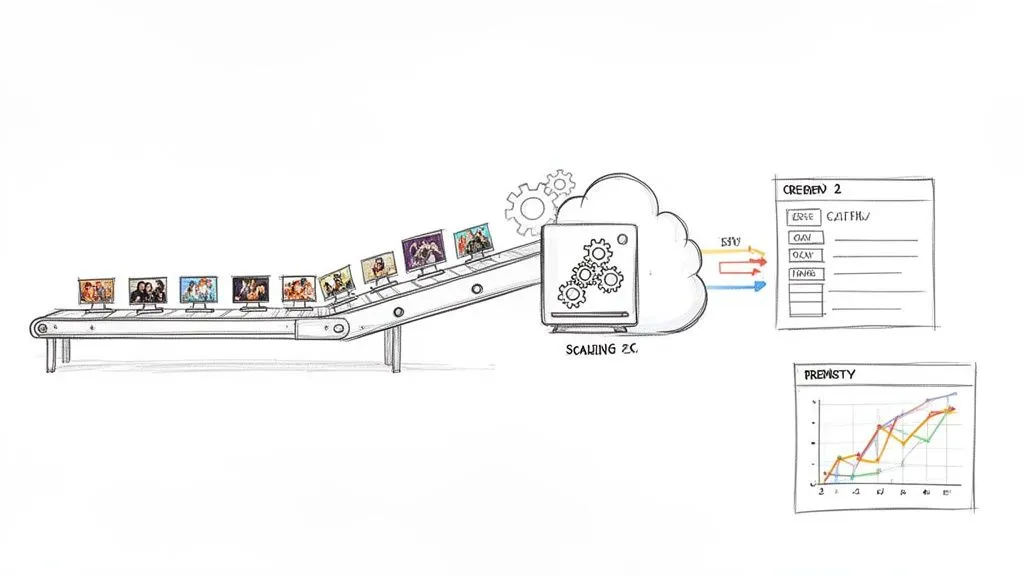
When you need to move beyond a single video, the real value of our YouTube comment scraper API comes into focus. Extracting comments from thousands of videos, say, an entire channel or a massive playlist, is where you start to uncover genuine, large-scale trends. Of course, this kind of work requires a much more deliberate approach than making one-off requests.
The goal is to build an efficient data pipeline that can queue up thousands of video IDs, send requests methodically, and gracefully handle any errors without crashing. You want a system that runs reliably in the background without constant babysitting.
Building a Resilient Request Queue
When you’re dealing with a huge list of videos, firing off requests all at once is a recipe for failure. What you really need is a request queue. Think of it as a simple, orderly list of all the video or channel IDs you plan to process, which your script can then work through one by one.
This approach puts you in complete control of your request rate. For example, you can easily program a short delay between each API call. This simple step helps you stay comfortably within the API’s rate limits, which is the best way to prevent 429 Too Many Requests errors and keep the data flowing smoothly.
A solid queue system also needs to be resilient. If a request for one video fails, maybe due to a temporary network blip or an invalid ID, your entire job shouldn’t grind to a halt. A good script will log the error, move that failed ID to a separate “retry” list, and simply carry on with the rest of the queue. You can always circle back to process the retry list later. When building these kinds of systems, it’s incredibly helpful to understand the core concepts from a good large-scale web scraping guide.
Optimizing for Speed and Efficiency
For very large datasets, speed is obviously a factor. While you always have to respect rate limits, you can still make your workflow much more efficient. A common strategy is to use asynchronous requests, which allows your application to send a new request without waiting for the previous one to finish.
Here are a few other tips we’ve seen work well for bulk processing jobs:
- Filter at the Source: Use API parameters like
maxCommentsPerVideoto pull only what you need. If you just want the top 100 comments to get a feel for sentiment, there’s no reason to download 10,000. - Target Specific Data: Be surgical. If your project only requires comment text and like counts, you can discard the other metadata during processing. This keeps your final dataset lean and easier to manage.
- Process Incrementally: For ongoing monitoring projects, don’t re-process everything. Store the
publishedAttimestamp from your last run and only request comments that are newer.
We’ve seen customers use these techniques to build massive datasets for social listening. One reported that our API handled 3,000 videos and collected over 750,000 comments in under 30 minutes, a task that would have taken weeks to do manually.
To see a practical walkthrough of these strategies, check out our guide on how to bulk download YouTube comments for large-scale analysis.
Frequently Asked Questions About Scraping YouTube Comments
Getting into APIs can feel like walking into a maze, especially with a platform as huge as YouTube. It is only natural to have questions. Here, we’ve gathered the most common ones we hear about using a YouTube comment scraper API to give you clear, straightforward answers from our experience.
How Is This Different From the Official YouTube Data API?
It really boils down to two things: purpose and scale. The official YouTube Data API is great for many tasks, but it was never designed for mass comment collection. It comes with a very strict quota of about 10,000 units per day, a limit you can burn through surprisingly fast. Try to pull comments from just a few popular videos, and you’ll hit that wall before you know it.
That’s where a dedicated API for comments comes in. It’s a specialized tool built for one job: pulling comments at a massive scale. Think of it as the heavy-duty equipment for researchers, marketers, and developers who need to gather thousands, or even millions, of comments without getting bogged down by the official API’s limitations.
Is It Legal to Scrape YouTube Comments?
This is a big one, and the short answer is that collecting publicly available data, like YouTube comments, is generally considered acceptable. The legal landscape has nuances, but the core principle is that if anyone can see the data without logging in, it’s typically fair game for collection and analysis.
The key is to operate ethically and responsibly. To ensure you stay well within legal and ethical boundaries, just stick to these common-sense rules:
- Only collect public data. Never try to access comments from private videos or access any information that isn’t meant for the public.
- Don’t chase private user details. Your focus should be on the content of the comments, not on trying to de-anonymize users.
- Be a good citizen. A well-built API won’t hammer YouTube’s servers. Avoid aggressive, rapid-fire requests that could disrupt their service.
It’s crucial to separate data collection for analysis from things like spam, harassment, or impersonation. Those actions are explicitly against YouTube’s rules and can have serious consequences. Our goal is to understand public sentiment, not to interfere with it.
Can a YouTube Comment Scraper API Get Me Banned?
There is virtually zero risk to your personal YouTube account when you use a reputable third-party API service. The reason is simple: your account isn’t involved in the data collection process at all.
The API service handles every request using its own pool of servers and infrastructure. All the technical heavy lifting happens on their end, completely separate from you. This creates a buffer that insulates your account from any direct interaction with YouTube’s systems.
Ready to stop guessing and start analyzing what your audience truly thinks? YouTube Comments Downloader makes it easy to turn chaotic public discussions into structured, actionable data. Go from video URL to a clean dataset in CSV, JSON, or TXT in just a few clicks. Get started for free and see for yourself.